Check which substitute ingredient lot went into a finished batch
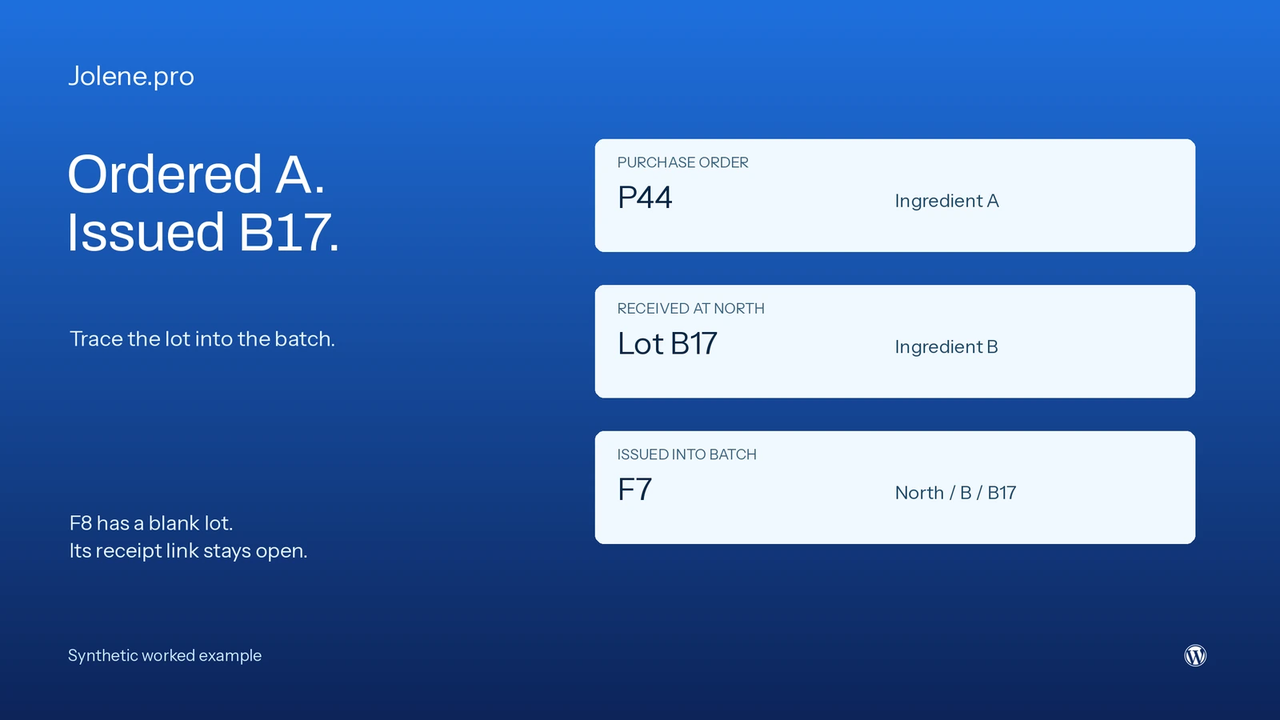
An order names ingredient A. Receiving records show that ingredient B arrived instead. Later, a finished batch needs an explanation of which lot it used.
Start with the batch issue record. Follow its ingredient and lot back to receiving, then compare the receipt with the original order. A shared ingredient description gives you less evidence than a documented lot and location.
GS1’s traceability standard describes retaining the relationship between inputs and outputs when products are transformed. The following fictional example turns that principle into a small check using records a co-packer may already keep. GS1 Global Traceability Standard, section 3 and requirement R24
Put the source records on three sheets
Create a sheet named PO. Paste this table into A1. The example uses one order line, so its order reference identifies that line. Add a line ID when a real order contains several ingredients.
| Site | Order reference | Ordered ingredient | Substitution approval reference |
|---|---|---|---|
| North | P44 | A |
Create Receipts with these headers and rows in A1:D4.
| Site | Order reference | Received ingredient | Lot |
|---|---|---|---|
| North | P44 | B | B17 |
| North | P45 | B | B18 |
| South | P89 | B | B17 |
Create BatchIssue with these headers and rows in A1:D3. Leave F8’s lot cell empty.
| Site | Finished batch | Issued ingredient | Lot |
|---|---|---|---|
| North | F7 | B | B17 |
| North | F8 | B |
These are synthetic records. They show linkage evidence for two batches. They contain no quantities or approval evidence.
Count matching receipt rows before choosing one
In BatchIssue!E1 enter Receipt matches. In E2 enter the following formula and fill it down to E3.
=IF(OR(A2="",C2="",D2=""),"Review",SUMPRODUCT(--EXACT(Receipts!$A$2:$A$4,A2),--EXACT(Receipts!$C$2:$C$4,C2),--EXACT(Receipts!$D$2:$D$4,D2)))This formula checks the site, ingredient and lot together. EXACT preserves case and treats wildcard characters in IDs as literal text. Expand the bounded ranges when you add records.
F7 returns 1. Its North/B/B17 issue matches Receipts row 2. South’s B17 is outside that site’s match, and North’s B18 is a different lot. F8 returns Review because its lot is blank.
For a result of 1, inspect the matching receipt and carry its order reference into the review. For F7, Receipts!B2 points to P44 and PO!C2 names A, while Receipts!C2 and BatchIssue!C2 name B. That chain supports reviewing the recorded substitution. PO!D2 remains blank, so the approval reference is still missing.
A count above 1 means several receipt rows share the key. Obtain an issue-to-receipt movement reference, or retain all relevant receipt evidence when a lot spans receipts. Before using real files, include legal entity and the supplier or manufacturer scope of the lot identifier where needed. Record dates and the report cutoff so later receipts cannot explain earlier production.
Try a changed-input check
Change Receipts!A4 from South to North. F7 should now return 2. The check should expose the additional candidate. Restore the original value afterward. Next, enter B18 in BatchIssue!D3. F8 should return 1 and point to P45. That source change explains the changed result.
Keep the issue row, matching receipt row, order line and approval record together when sending the exception to the receiving or production team. Missing quantities, dates or movement references remain open questions for a fuller trace.
If you use Jolene.pro, ask it to compare the supplied batch issues with receipts by their documented identity fields, report missing or multiple matches, and cite the exact source cells. Ask it to show the order-to-receipt ingredient difference separately from approval evidence. These fictional results were checked independently. A live Jolene result for these rows has not been verified.
Try it in Jolene.pro with your own spreadsheet.