How to check which scheduled hours are exposed to a new labour rate
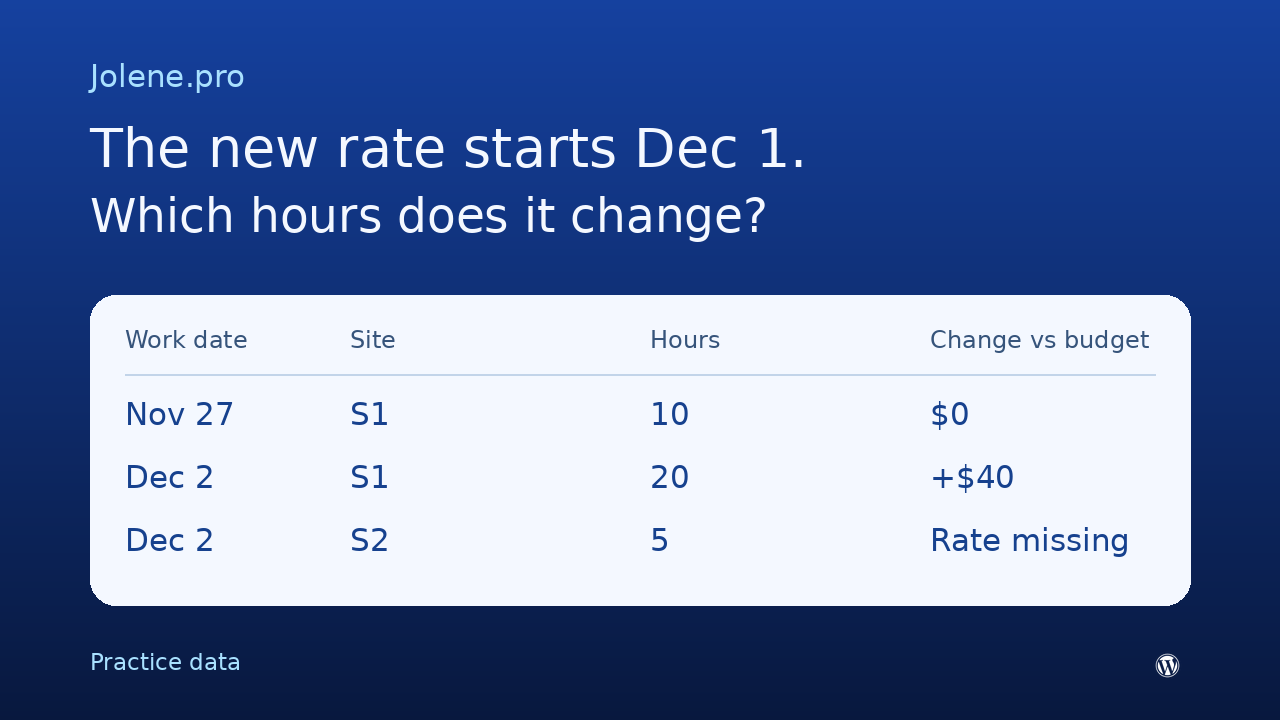
An approved labour rate can change partway through a schedule. A month-end budget total doesn’t show which remaining work falls after the change. Use the work date to apply the correct rate to each row.
The spreadsheet check
1. For each remaining schedule row, match the site and trade to approved rates. Choose the latest effective date on or before the planned work date.
2. Calculate remaining hours × (approved rate − budget rate). Keep hours with no supported rate in a separate list.
3. Check duplicate rate dates or overlapping approvals before calculating a cost. Review completed and committed work separately when their billing basis differs.
Worked example
These rows are fictional. Paste the supplied CSV tables at A1 on sheets with the names shown.
Plan
WorkDate,Site,Trade,RemainingHours,BudgetRate
2026-11-27,S1,ELECTRIC,10,20
2026-12-02,S1,ELECTRIC,20,20
2026-12-02,S2,ELECTRIC,5,21
Rates
Site,Trade,EffectiveFrom,ApprovedRate
S1,ELECTRIC,2026-11-01,20
S1,ELECTRIC,2026-12-01,22
S1 exposes USD 40. 10 hours at no change and 20 hours at USD 2 above budget. S2 has five unpriced hours. Check Plan!A2:E4 and Rates!A2:D3.
Source
Portuguese construction planning discussion argues for checking cost assumptions before month-end. Use actual approved rates for the reader’s project. Fictional numbers use USD.