Why Is My Excel PivotTable Counting Instead of Summing?
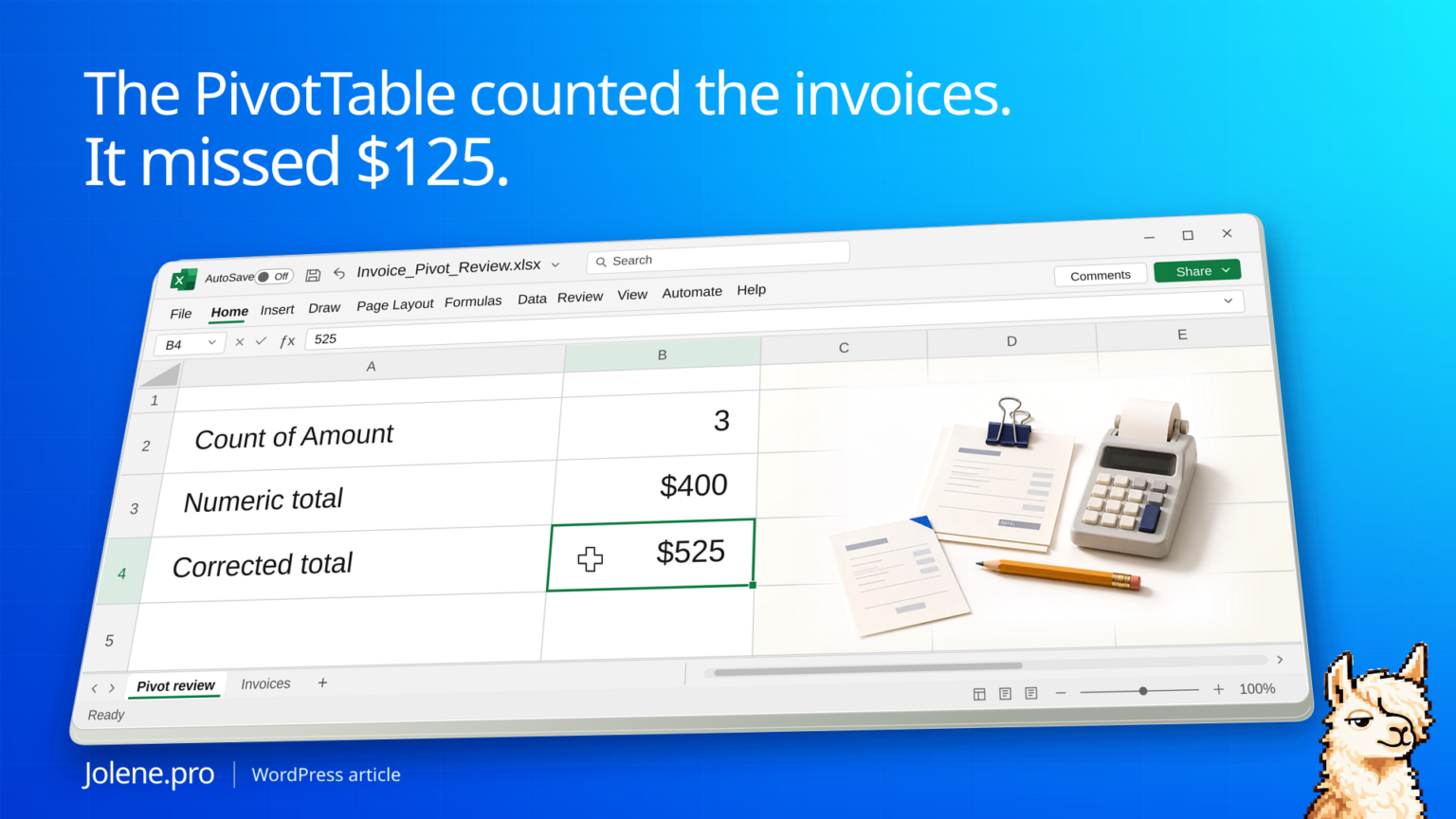
The weekly spend report says 18 under Count of Amount. That’s how many invoice lines are in the export. When you switch the PivotTable to Sum, the total still looks low. Some of the amounts came in as text, and changing the summary setting left those rows behind.
Check the source column first. Convert valid text amounts to numbers, refresh the PivotTable, then choose Sum for the value field. Compare the result with a separately checked source total.
Try the three-invoice workbook
Download the PivotTable practice workbook (.xlsx)
Open Invoice Export and inspect 'Invoice Export'!B4:D4. AP-803 has a text amount of 125.00 and a parsed numeric amount of 125. The Check tab shows the raw $400 subtotal and the corrected $525 total in Check!B7:B9.
Create a PivotTable from the Invoices table. Put Amount in Values and inspect its summary setting. Then add Parsed amount, choose Sum, and verify that it ties to $525. The workbook keeps the original amount beside the parsed result so you can see exactly what changed.
| Result | Amount | Source |
|---|---|---|
| Sum of numeric cells | $400 | Invoice Export!B2:B3 |
| Amount stored as text | $125 | Invoice Export!B4 |
| Sum after converting the text amount | $525 | Invoice Export!B2:B4 |
Try this question. Which amount in the Invoice Export is stored as text, what is its cell address, and what should the three lines total?
Open Jolene.pro to run the example · Browse more Jolene.pro Workbook Studies
The three rows that explain the missing dollars
Paste these values into an InvoiceExport table. Enter the first two amounts as numbers and the last one with a leading apostrophe so Excel stores it as text.
| Invoice | Amount shown | Stored as |
|---|---|---|
| AP-801 | 240.00 | Number |
| AP-802 | 160.00 | Number |
| AP-803 | 125.00 | Text |
All three cells contain a value. The numeric cells total $400. After converting AP-803, the intended total is $525. That $125 difference is the amount to explain before anyone uses the report.
Find the source cells Excel isn’t treating as amounts
Add a column next to Amount and enter =ISNUMBER([@Amount]). Filter for FALSE. Check blanks and genuine notes before converting anything. If the entire export uses the same number format, use Excel’s Convert to Number option where it appears, or parse a copy of the field in Power Query. Specify the source locale if separators vary.
Refresh the PivotTable and prove the total
Right-click a value, choose Summarize Values By, and select Sum after refreshing. Confirm the source range includes the whole table. Compare the corrected total to the converted amount column and keep any unparseable values on a review list.
If new records remain absent after refresh, inspect the PivotTable source-range check. Its shipment example identifies 25 records outside the old range. Changing Count to Sum cannot bring excluded rows into the source.
Check next week’s export before building the report
Keep the invoice ID, original Amount, and converted Amount next to each other. That gives you an audit trail for any amount that remains outside the total.
Which invoice amounts are stored as text? Show the source cells, the numeric-only total, and the difference after converting valid values. Flag values that still need review.
If the next extract still mixes types, give the export owner the invoice IDs and original values. You can fix the workbook and the source of the recurring issue.
Microsoft’s PivotTable guide · Microsoft’s NUMBERVALUE reference
The figures and identifiers in this example are synthetic.
Try this with your own spreadsheet at Jolene.pro. Follow Jolene.pro on LinkedIn for more spreadsheet guides.
1 comment