How to reconcile billable expenses after a QuickBooks Desktop migration
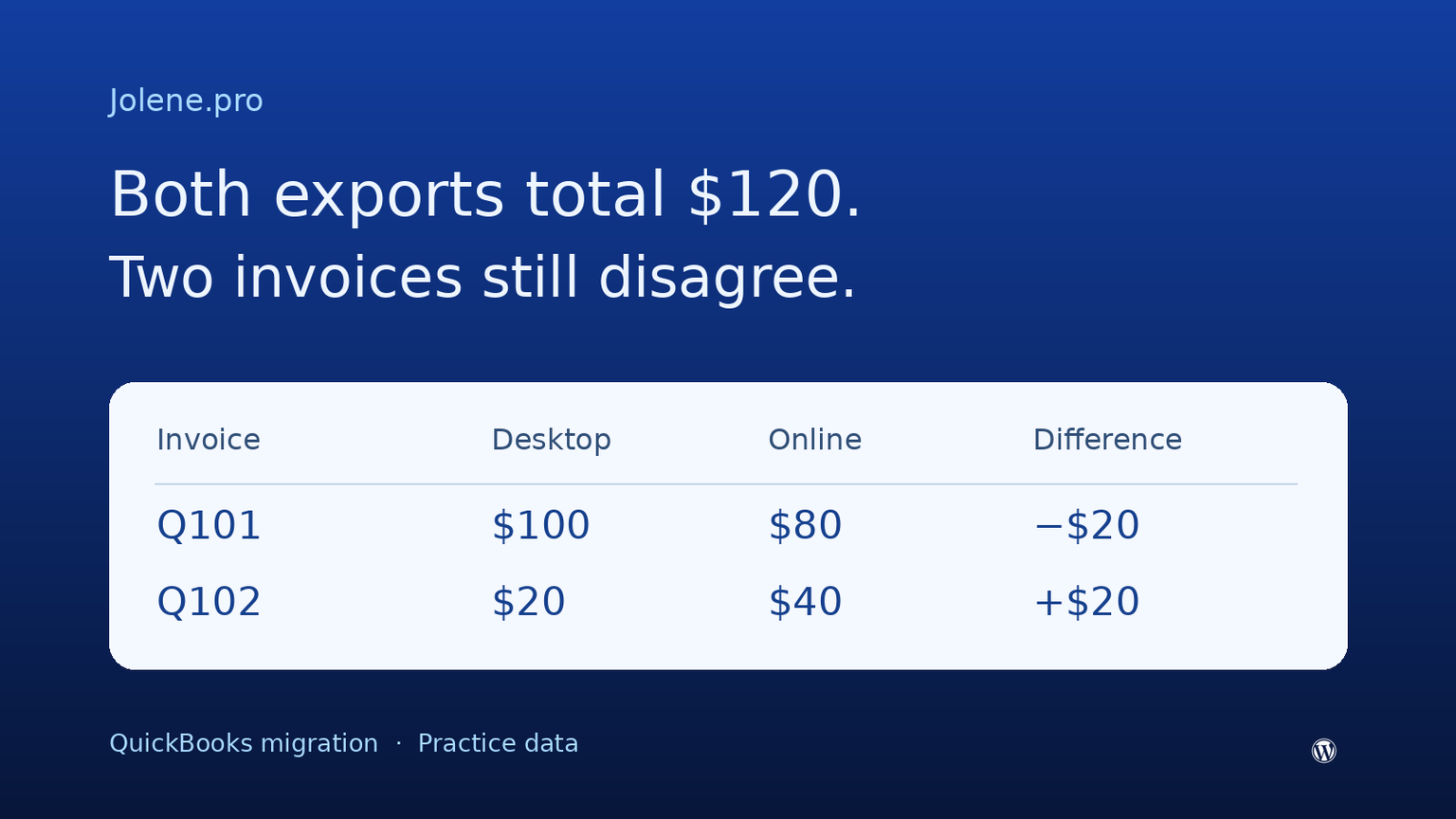
Both exports total $120. Match them by invoice and two differences appear. In this fictional example, one online invoice is $20 short and another is $20 over.
Match each invoice before comparing the amounts
- Confirm a one-to-one mapping between the legacy and target invoice IDs for the same company and currency.
- Sum the Desktop billable expenses per legacy invoice and compare that sum with the corresponding migrated billable-expense line.
- Calculate Online minus Desktop and keep unresolved mappings visible. Review the original expense rows before assigning a cause.
Try it with three small sheets
These rows are fictional. Paste each CSV block at A1 in the named sheet.
Desktop
LegacyInvoice,ExpenseID,BillableUSD
A,E1,60
A,E2,40
B,E3,20
Online
TargetInvoice,MigratedBillableUSD
Q101,80
Q102,40
Map
LegacyInvoice,TargetInvoice
A,Q101
B,Q102
Desktop totals $120 and Online totals $120. Q101 is $20 short ($80 against $100), and Q102 is $20 over ($40 against $20). Check Desktop!A2:C4, Online!A2:B3 and Map!A2:B3 before investigating the underlying expense lines.
Intuit’s November product update describes the grouped line for eligible migrations. In Jolene.pro, try asking for the invoice-level differences, unmatched IDs, and source cells for each exception.