How to Check Whether Waitlisted Classes Overlap a Confirmed Booking
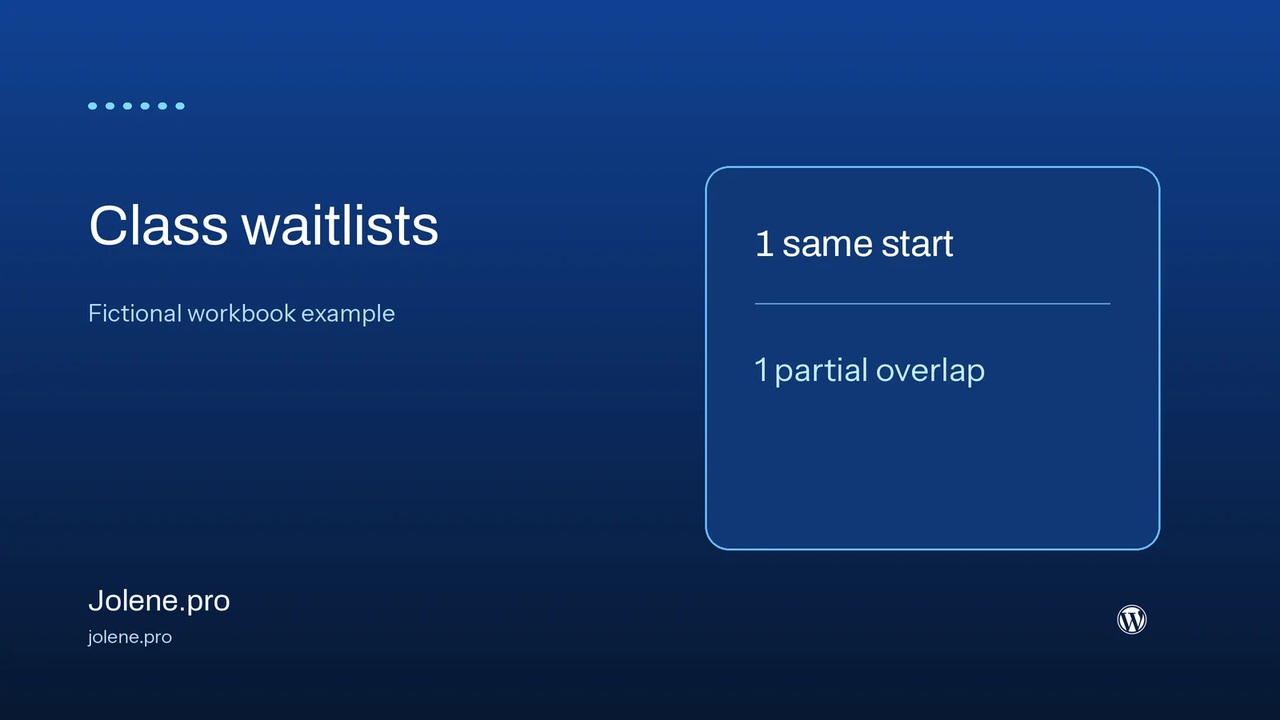
A class can start later and still overlap a confirmed booking. In this fictional roster, one waitlist row starts at the same time, one partly overlaps, and three rows fall outside the check.
Compare the intervals after normalizing the time zone
| Source row | Participant | Local slot | UTC slot | Result |
|---|---|---|---|---|
| Confirmed!A2:F2 | X | 18:00–18:45 UTC+02 | 16:00–16:45 | Reference |
| Waitlists!A2:F2 | X | 18:00–18:45 UTC+02 | 16:00–16:45 | Same start |
| Waitlists!A3:F3 | X | 19:00–20:00 UTC+02 | 17:00–18:00 | Clear |
| Waitlists!A4:F4 | Y | 18:00–18:45 UTC+02 | 16:00–16:45 | Different participant |
| Waitlists!A5:F5 | X | 17:30–18:30 UTC+01 | 16:30–17:30 | Partial overlap |
| Waitlists!A6:F6 | X | 18:45–19:15 UTC+02 | 16:45–17:15 | Touches the end, no overlap |
- Keep one row per booking or waitlist entry with participant, venue, local start and end, and the source offset or zone and date. Convert to comparable dated timestamps. Check that the end is later than the start.
- For the same verified participant ID, two intervals overlap when waitlist start is earlier than confirmed end and confirmed start is earlier than waitlist end. Using strict comparisons leaves a class that begins exactly at the confirmed end outside the overlap.
- Report same-start and other overlaps separately. If two systems use different participant IDs, only use a verified crosswalk. Leave an ambiguous identity or missing time-zone conversion for review.
in2 documents same-time waitlist removal within its stated scope. This worksheet tests supplied mixed-source records under an explicit overlap rule. Use the booking system to confirm or change each seat.
Try it in Jolene.pro with a spreadsheet you are authorized to use.