How to Import Decimal Commas as Numbers in Excel
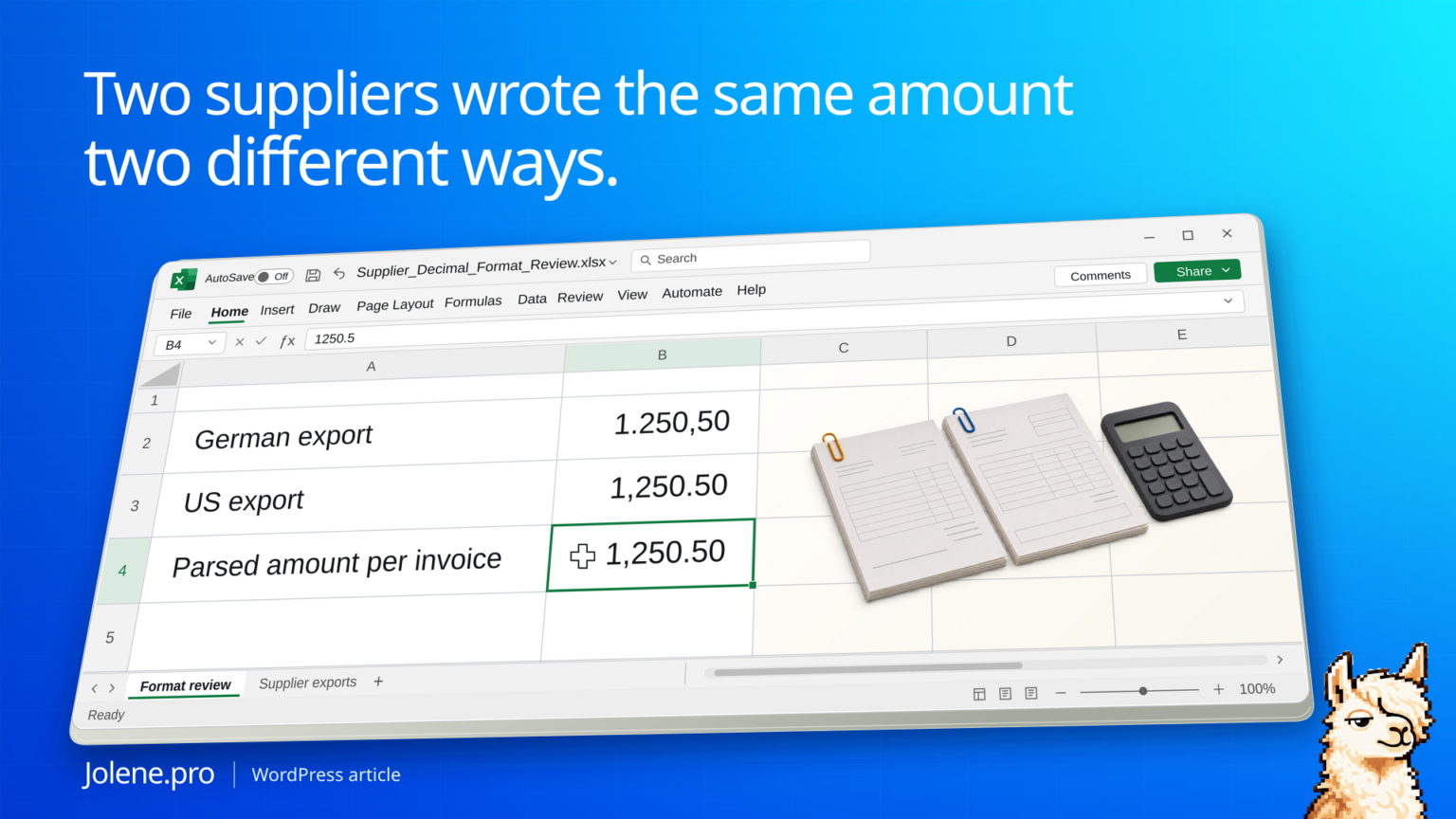
One supplier sends 1.250,50 and another sends 1,250.50. Excel can keep one as text or read it at the wrong scale if the import guesses a format. A purchasing total should never depend on that guess.
Keep the raw value and parse each source using its own documented decimal and thousands separators. Confirm the same currency and units before adding the results.
Two formats, the same numeric amount
These three source records use the same invoice currency for this example. The third row needs manual review.
| Source | Raw amount | Source format | Parsed amount |
|---|---|---|---|
| DE export | 1.250,50 | Decimal comma | 1,250.50 |
| US export | 1,250.50 | Decimal point | 1,250.50 |
| US export | pending | Status text | Review |
The two valid values total 2,501.00. The third line stays in an exception list. Avoid replacing a failed parse with zero before reconciliation.
Import the raw amounts as text
Confirm the file delimiter before changing column types. A decimal-comma export may use a semicolon between fields, or quote values containing the delimiter. Remove a guessed type step and duplicate the raw field in Power Query. Apply Change Type → Using Locale to the parsed column using the vendor’s documented source.
Use explicit separators for an Excel formula
For a German-style raw value in D2, NUMBERVALUE lets you specify the decimal comma and thousands period. Use the inverse separators for a US-style value. Preserve errors in a review column and check large or small totals against the invoice detail.
=NUMBERVALUE(D2,",",".")Copy the three source rows into Excel
Create a sheet named Import Review. Format columns D:F as Text before pasting so Excel preserves the raw amounts and separator characters. Paste this tab-separated sample into A1. EUR is the invoice currency in both exports; the country label describes the number format, not a currency conversion.
Invoice	Source	Currency	Raw amount	Decimal separator	Group separator
INV-DE-01	DE export	EUR	1.250,50	,	.
INV-US-01	US export	EUR	1,250.50	.	,
INV-US-02	US export	EUR	pending	.	,
Add Parsed amount in G1 and Check in H1. Enter these formulas in G2 and H2, then fill both down to row 4. These formulas use English Excel names and comma argument separators. Some regional installations require semicolons between arguments; the quoted decimal and group characters keep their meaning.
G2: =IF(D2="","",NUMBERVALUE(D2,E2,F2))
H2: =IF(D2="","Review: blank",IF(ISNUMBER(G2),"Parsed","Review: source value"))
G2 and G3 each return 1250.50. G4 returns a conversion error for pending; H4 identifies the source value for review. The blank guard matters because NUMBERVALUE converts an empty string to zero. Keep that distinction visible.
For this small example, =SUM(G2:G3) gives an accepted subtotal of EUR 2,501.00. It deliberately covers only the two confirmed numeric rows. =COUNT(G2:G4) gives two numeric results. Three source records minus two numeric results leaves one unresolved invoice amount. This is an accepted subtotal, not a reconciled total for all three invoices. For larger exports, maintain a separate accepted list and exception list, and reconcile their row counts back to the source.
Convert each source before combining files
In Power Query, keep the untouched raw amount and duplicate it for conversion. For the DE source, apply Change Type → Using Locale to the duplicate and choose Decimal Number with German (Germany). For the US source, choose English (United States). Convert each source query under its own rule before appending them. Keep conversion errors in an exception query instead of removing those invoices.
A single string such as 1,250 cannot tell you whether the supplier meant 1.25 or 1,250. Use the export specification or invoice detail. If an earlier import has already changed the stored amount, return to the original text file; applying another format to the altered number cannot establish the original value.
What to verify before using the subtotal
Check Import Review!A2:F4 against the raw export, G2:G4 for conversion outcomes and H2:H4 for unresolved records. Keep invoice IDs and currency beside every amount. A supplier file that happens to parse is still worth checking against the original invoice, especially when a number has changed by a factor of 100 or 1,000.
Find the amounts still awaiting conversion
Include the source label, original value, parsed amount, currency and invoice reference.
Which invoice amounts failed to parse or changed scale between raw and converted files? Show the original text, applicable rule, amount and source cells.
Reconcile per supplier before combining. If currencies differ, convert under a documented exchange-rate policy before aggregating.
Microsoft NUMBERVALUE reference · Microsoft on locale in Power Query
The figures and identifiers are synthetic. The arithmetic was checked independently; native Excel recalculation and a live Jolene.pro result were not verified.
Try this with your own spreadsheet at Jolene.pro. Follow Jolene.pro on LinkedIn for more spreadsheet guides.
Related checks: dates assigned to the wrong month after CSV import · Workbook Studies and practice data.