Shopify On Hand vs Available Inventory: Why Stock Shows as Sold Out
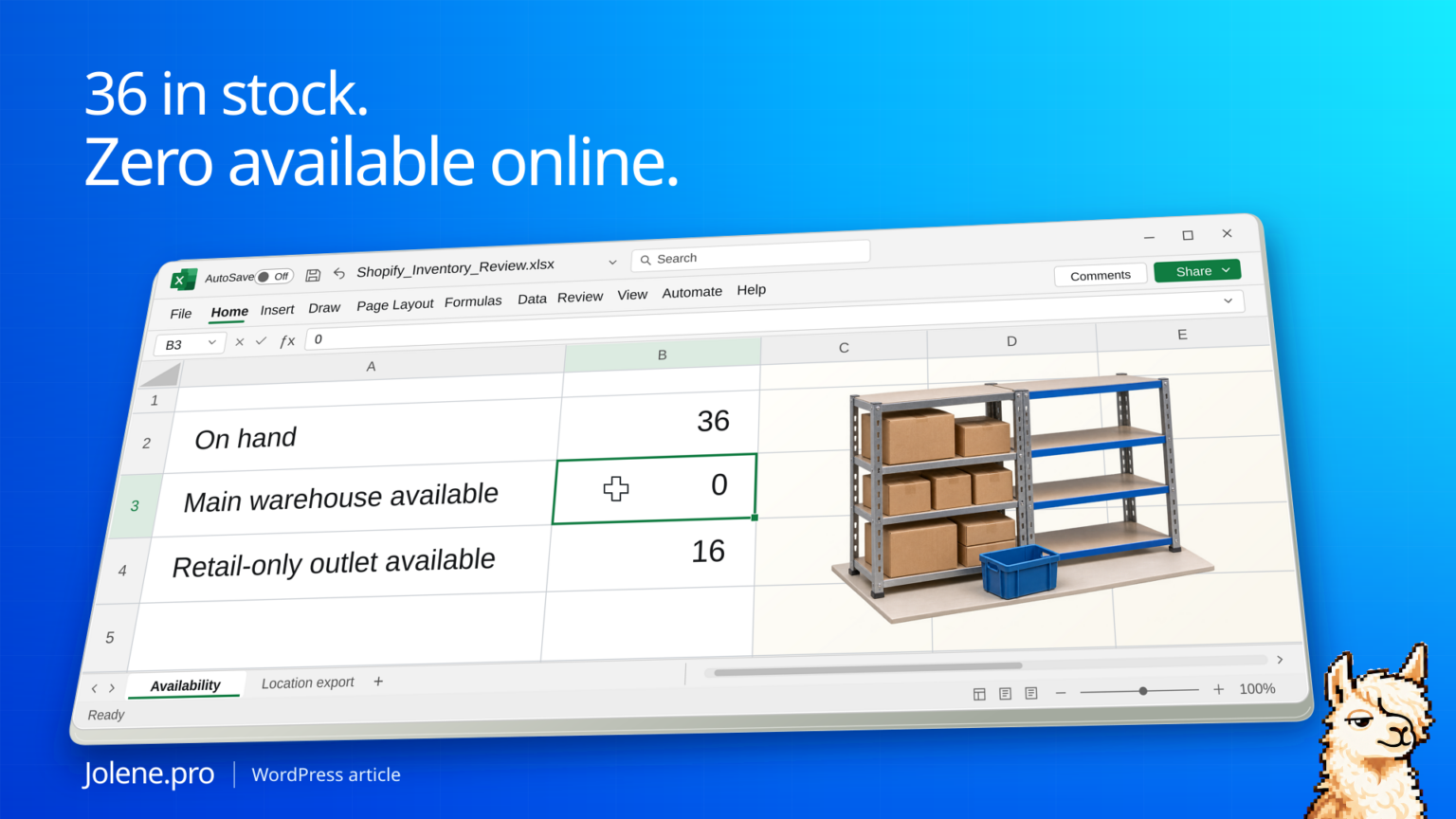
The product has 36 on hand and the store still shows Sold out. You’re about to feature the variant in an email, so the location matters more than the total. The warehouse that serves online orders already has every unit accounted for.
Check Available at each location that can fulfill this variant for the relevant channel and shipping destination. Compare that with Committed and Unavailable before changing inventory or moving stock.
Try the Shopify inventory workbook
Download the inventory and promotion workbook (.xlsx)
In this synthetic example, Inventory!A2:H3 shows 36 units on hand for MUG-INK. Sixteen at the main warehouse are committed and four are unavailable. The outlet’s 16 available units are at a location that does not fulfill online orders, according to Locations!A2:B3. The email needs eight units in Promotions!D2, so the online shortfall is eight. The eight incoming units in Inventory!H2 are still outside the available count.
Try this question. Which November email variants have fewer available units than required at online-fulfilling locations? Show the shortfall, why stock elsewhere or incoming stock can’t fill it today, and the exact source rows.
Open Jolene.pro to run the example · Browse more Jolene.pro Workbook Studies
Shopify says its inventory reports switched to On hand quantity beginning October 1, 2026. Check the metric name before reading a report balance as online availability. Shopify inventory report definitions.
Where the 36 units are sitting
Both rows below are for the same tracked variant. The outlet in this example is active for retail only.
| Location | On hand | Committed | Unavailable | Available | Fulfills online |
|---|---|---|---|---|---|
| Main warehouse | 20 | 16 | 4 | 0 | Yes |
| Outlet | 16 | 0 | 0 | 16 | No |
There are 16 available units at the outlet and zero at the warehouse serving the online offer. The merchandiser can ask about a transfer or pause the email slot until there is enough sellable stock where it’s needed.
Confirm the variant and the location
Export location inventory with the states you need, and check location settings in Shopify. Use Variant ID or a verified unique SKU plus Location. Keep a time stamp for the inventory snapshot. A dash in Available can indicate an inactive variant at a location, so preserve it separately from a numeric zero.
Check units already spoken for
Reconcile on-hand units to available, committed and unavailable. Check reserved or held stock with the inventory owner. Keep incoming transfers separate until received and available. Review channel publication and shipping configuration if eligible stock is positive but the product still appears unavailable.
Put the decision next to the numbers
Make a short promo list with the variant, online-eligible available units, other-location stock, and the first action. For example, request a transfer of eight verified units or leave the offer paused.
Review the promo list against the inventory export
Add the planned promotion and required stock to a separate tab. The same check is handy before every weekly merch review.
Which promo variants have stock on hand but too few available units at online-fulfilling locations? Show each location, inventory state, required units and the source rows.
Check the variant again after an approved transfer is received. The pre-transfer worksheet provides a record of the decision.
Shopify inventory states · Shopify inventory CSV · Shopify fulfillable inventory
The figures and identifiers in this example are synthetic.
Try this with your own spreadsheet at Jolene.pro. Follow Jolene.pro on LinkedIn for more spreadsheet guides.