Jolene.pro for Staffing Agencies: Find Approved Hours Missing from Invoices
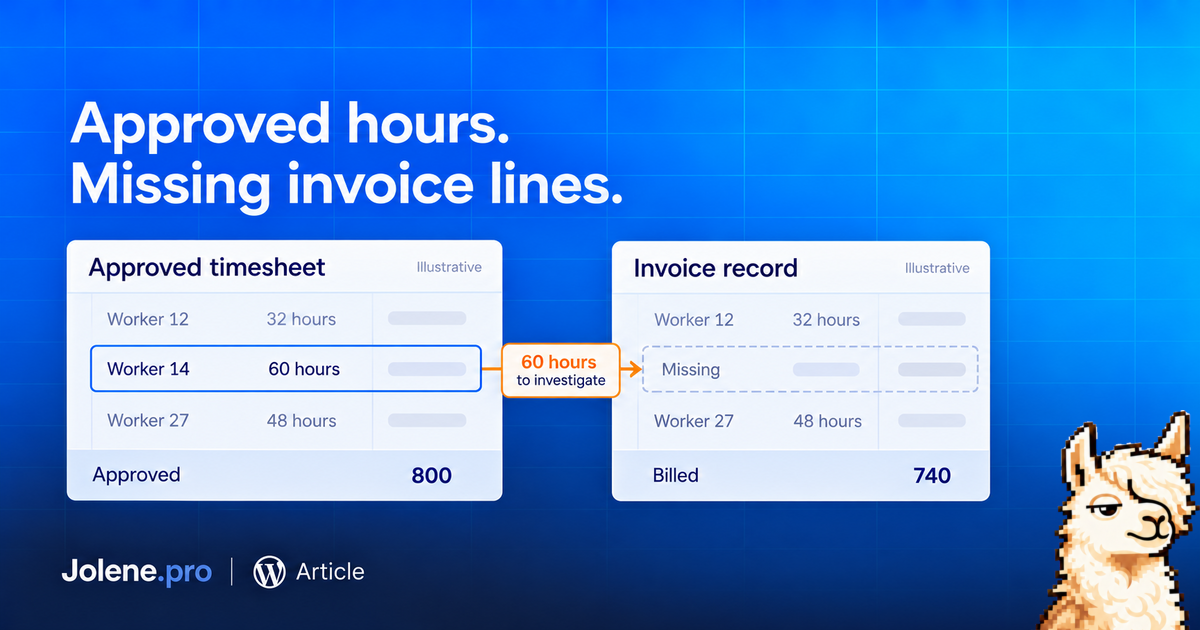
The timesheets are approved. The invoices have gone out. Before closing the week, there’s one useful check: did every billable hour make it onto an invoice?
Jolene.pro helps staffing agency owners and billing managers review that question across Excel and CSV records, with references back to the source cells, rows and sheets.
Start with three sets of records: approved timesheets, assignment billing rates and invoice lines. Together, they let you investigate the gap between work approved and work billed.
Consider a fictional agency supplying temporary warehouse staff. For one client and service week, its timesheets show 800 approved hours. The corresponding invoice lines account for 740.
That leaves 60 hours to investigate. At a uniform client billing rate of $45 an hour, the potential billing difference is $2,700, before tax.
The hours did their job. Now the paperwork needs to.
A gap is a starting point
Those 60 hours aren’t automatically missed revenue. Some may have been approved after the billing cutoff. Others might belong to the next invoice batch or include agreed nonbillable time.
Staffing software documentation reflects this connection: Bullhorn describes approved temporary-placement timesheets generating invoice lines, which can then be grouped by client, placement or purchase order. Comparing records at the right level matters. kb.bullhorn.com
For your review, keep the worker or assignment ID, client, work date, hours, approval date and billing status. Include invoice numbers and the client billing rates effective when the work happened.
Use assignment IDs where available. A worker’s name alone may not distinguish two placements with different rates.
Give Jolene.pro a specific billing question
Bring the records into a workbook with separate sheets for timesheets, rates and invoice lines. Then try:
For this service week and billing cutoff, compare approved billable timesheet hours with invoiced hours by client and assignment. Show unmatched or partially billed entries with their source references. Use the applicable client billing rate, keep regular and overtime hours separate, and flag uncertain matches.
Check the supporting rows before adding anything to the next invoice. Use the client billing rate rather than the worker’s pay rate. Check rate changes, invoice credits and replacement invoices so a correction doesn’t look like another charge.
If your invoice export contains only totals, obtain the line-level detail first. A dollar total alone cannot establish which hours were billed.
Turn the difference into a follow-up
Suppose the fictional agency checks all 60 hours. It finds that 40 were approved after the cutoff and belong in the next batch. Another 20 were approved in time but omitted.
The immediate correction is therefore 20 hours × $45 = $900. The remaining $1,800 needs tracking through the next billing run.
That is a more useful outcome than sending someone a spreadsheet labelled “$2,700 missing.”
Save the analysis in Jolene.pro to rerun when the next week’s records arrive, updating the service period and cutoff. Review any structural-change warning before relying on the comparison.
Try Jolene.pro with one client’s weekly billing workbook. Start with approved hours, follow the references and leave with a specific list to check, bill or carry forward.