How to Check Purchase Orders, Receipts, and Invoices in Excel
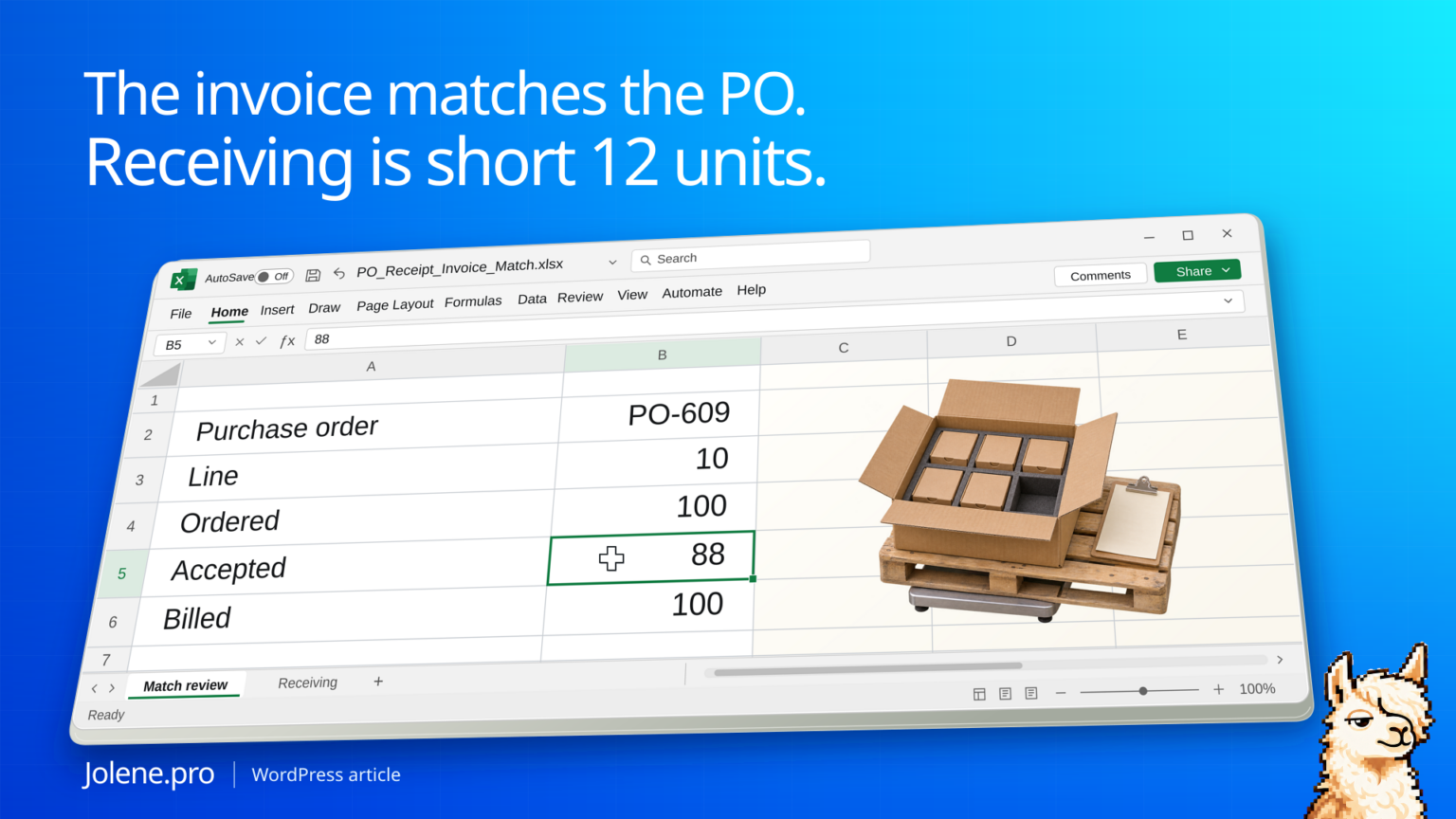
The vendor billed 100 units and the PO says 100. The warehouse accepted 88. Before the invoice goes into the payment run, AP needs to see what was received and whether there were other bills against that line.
Compare cumulative accepted receipts with cumulative billed quantity on the same PO line, using the approved tolerance and unit of measure. A matching PO and invoice quantity still leaves the receiving check.
The line that needs 12 units explained
The sample uses the same unit throughout and has no prior bills or credits on line 10.
| PO line | Ordered | Accepted | Billed to date | Exception |
|---|---|---|---|---|
| PO-609 / 10 | 100 | 88 | 100 | 12 billed before receipt confirmation |
| PO-609 / 20 | 40 | 40 | 40 | None |
| PO-609 / 30 | 60 | 60 | 45 | 15 received and unbilled |
Line 10 belongs on the invoice review. Line 30 belongs on the received-but-unbilled list. Grouping the whole PO would let the two differences partly cancel.
Recreate the checks from receipt and bill rows
Create three worksheets named PO, Receipts and Bills. Paste each tab-separated block into A1 on the named sheet. All rows belong to the same fictional vendor V-01 and PO-609, use each as the unit of measure and USD as the currency. The extract is complete through November 17, 2026, with no returns, credits or additional earlier bills. This exercise uses zero quantity tolerance for flagging differences; AP still decides how to resolve them.
PO sheet:
Line	OrderedQty	POUnitPrice
10	100	10
20	40	5
30	60	8
Receipts sheet. AcceptedQty records accepted units, rather than units merely dispatched by the supplier:
ReceiptID	Line	AcceptedQty
RC-901	10	60
RC-902	10	28
RC-903	20	40
RC-904	30	25
RC-905	30	35
Bills sheet. Each row is a separate bill line in this simplified extract:
BillID	Line	BilledQty	BillUnitPrice
VB-701	10	100	10
VB-702	20	40	5
VB-703	30	30	8
VB-704	30	15	8
On PO, add D1 AcceptedQty, E1 BilledQty, F1 BilledAheadOfReceipt and G1 ReceivedUnbilled. Enter these formulas in row 2, then fill D2:G2 down through row 4:
D2: =SUMIF(Receipts!$B$2:$B$6,A2,Receipts!$C$2:$C$6)
E2: =SUMIF(Bills!$B$2:$B$5,A2,Bills!$C$2:$C$5)
F2: =MAX(E2-D2,0)
G2: =MAX(D2-E2,0)
Line 10’s accepted 88 units come from Receipts!C2:C3, while Bills!C2 contains 100 billed units. PO!F2 should therefore show 12. Line 30’s accepted 60 units come from Receipts!C5:C6; Bills!C4:C5 total 45. PO!G4 should show 15. Line 20 has no quantity difference. All bill unit prices match the corresponding PO rate in this example.
At those rates, line 10’s 12-unit exception is $120 and line 30’s 15 received-but-unbilled units are also $120. Total bill value is $1,560 and accepted value at PO rates is $1,560. That agreement does not clear either line. Keep both exceptions visible; do not offset them.
The line-only SUMIF is appropriate here because every row is scoped to one vendor, PO and unit of measure. For combined exports, group and match on the full vendor + PO + line + unit key, with compatible currencies and a common cutoff. Aggregate receipts and bills separately before joining them. Two receipts joined directly to two bills can multiply the source quantities. Missing or conflicting keys need review before totals.
Bring the data to one row per PO line
Group receipt and bill lines separately before joining to the PO. Adjust accepted quantities for receiving corrections, returns or rejections under the organization’s rule. Include prior bills, partial bills, and linked credits as applicable.
Check quantity independently from price
Retain separate flags for missing receipt, excess billing, unit-cost mismatch and missing references. Apply approved tolerances only after the raw differences are visible. Leave unmatched references in an exceptions table for manual review.
Hand AP the supporting rows before the run
Keep original vendor bill and receipt numbers, even if the summary groups by PO line.
Which current invoice lines exceed accepted receipts after prior bills and credits? Show ordered, received and billed units, tolerance and source references.
Ask receiving about line 10 before approval. The workbook explains the variance for review and the approval stays with AP.
For background on the controls, see Microsoft’s invoice-matching overview and matching invoice drafts to orders and receipts. The exercise above illustrates quantity checks; it does not reproduce an ERP approval workflow.
The figures and identifiers in this example are synthetic and independently calculated. The formulas have not been run in native Excel during this check, and a live Jolene.pro result has not been verified.
Next, check a supplier’s statement against open bills and credits with the vendor statement reconciliation worked example. Find more practice cases in Jolene.pro Workbook Studies.
Try this with your own spreadsheet at Jolene.pro. Follow Jolene.pro on LinkedIn for more spreadsheet guides.
Before placing the next order, compare supplier quotes using case packs, minimums and the required quantity. The worked example separates delivered cost per purchased piece from the cash needed for the buy.
1 comment