How to Fix Dates That Change After Importing a CSV Into Excel
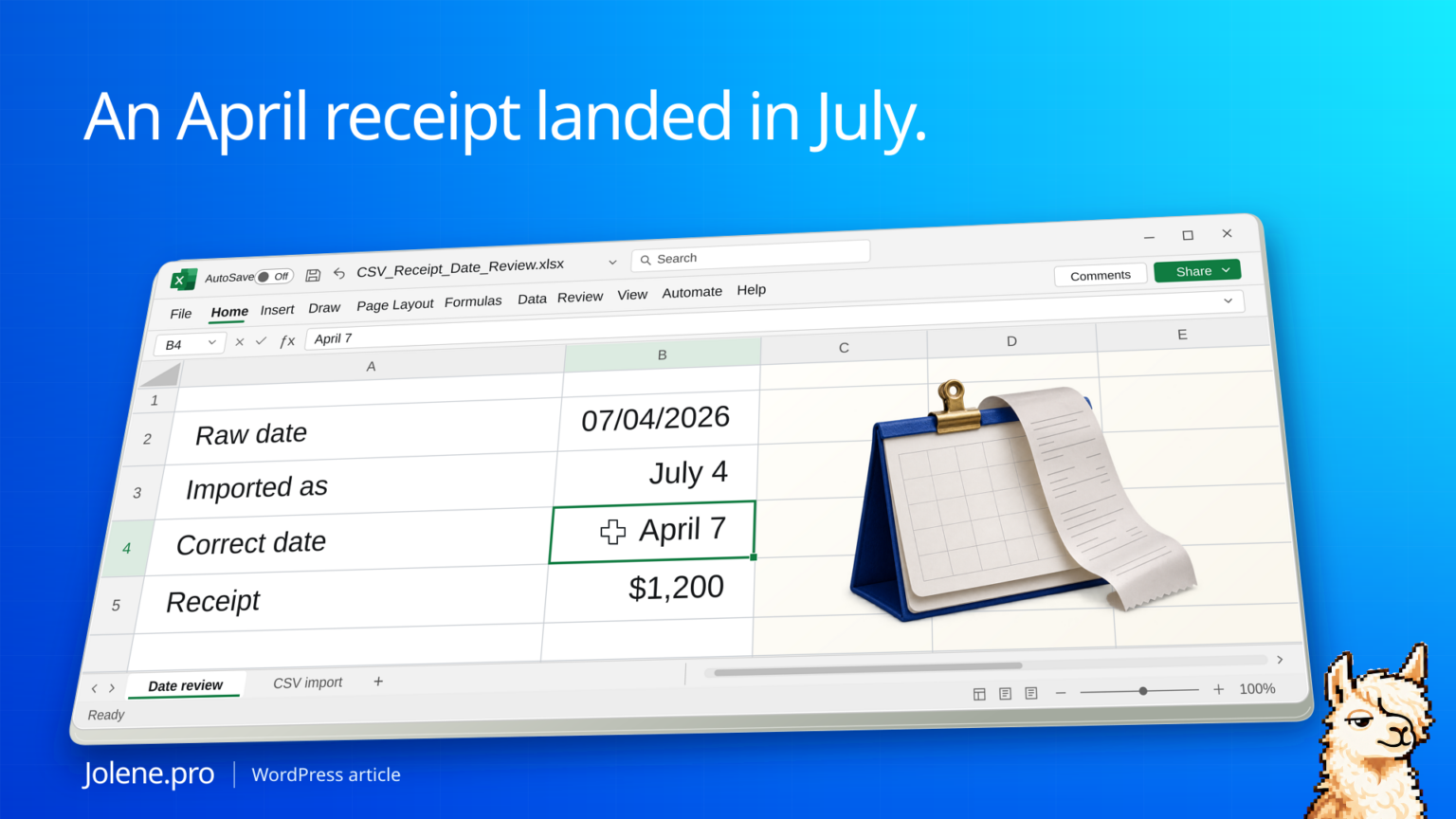
Your UK supplier sent a CSV. A receipt marked 07/04 appears under July in your workbook, even though it belongs in April. Both dates can look sensible. The first clue may be that the month-end total changes while the full-file total still agrees.
Import the date column as text first, confirm the source’s date order, then convert it in Power Query with Change Type → Using Locale. Keep the raw date and reconcile the totals by month after conversion.
Three source dates to check
This sample supplier confirms that its export uses day/month/year. Here’s what US month/day parsing would do to the same text.
| Receipt | Raw value | US parse | Correct source date | Amount |
|---|---|---|---|---|
| R-091 | 07/04/2026 | July 4 | April 7 | $1,200 |
| R-092 | 23/04/2026 | Conversion error | April 23 | $800 |
| R-093 | 14/07/2026 | Conversion error | July 14 | $600 |
The corrected report shows April at $2,000 and July at $600. If an import silently removed the two error rows, a grand-total check would catch the loss. The first row also needs a month check because its incorrect date is valid.
Reproduce the three-row check
Save the following text as a CSV in a plain-text editor. Import it with Data → From Text/CSV → Transform Data. Keep RawDate as text before any date conversion. The assumed source specification for this synthetic exercise is exactly dd/MM/yyyy.
Receipt,RawDate,Amount
R-091,07/04/2026,1200
R-092,23/04/2026,800
R-093,14/07/2026,600
Duplicate RawDate, then convert the duplicate using English (United Kingdom). Keep the original column unchanged. For an explicit fixed-format alternative, add a Custom Column named CorrectDate with this Power Query expression:
Date.FromText([RawDate], [Format="dd/MM/yyyy", Culture="en-GB"])
Check the resulting dates by extracting their day and month, rather than relying only on their display. R-091 must have day 7 and month 4; R-092 day 23 and month 4; R-093 day 14 and month 7. The controls are three records, zero conversion errors and $2,600 overall, split into April $2,000 and July $600.
Under strict US month/day parsing, only R-091 is a valid date, assigned to July for $1,200. R-092 and R-093 produce date errors totaling $1,400 in amounts. Keep those errors visible. Even if the untouched Amount column still sums to $2,600, the monthly report is wrong.
If the exporter has not confirmed the date convention, leave 07/04/2026 unresolved. One unambiguous date does not establish a rule for a mixed-source column. Separate known source formats before parsing, and retain a source-file field.
Keep the date exactly as exported
Start from the original CSV. In Excel, open Data → From Text/CSV and select Transform Data. Remove any automatic Changed Type step that already parsed the date. Keep a copy of the raw text column before conversion.
Apply the confirmed source locale
On the copied column choose Change Type → Using Locale, select Date, and choose the source locale, such as English (United Kingdom). For inputs from more than one system, convert each using its documented format before combining them. If every date is ambiguous, confirm the format from the exporter or an original record.
Recheck reporting periods
Compare the converted record count, any errors, and the monthly amounts with the original control totals. Use an ISO-style date display to make spot checks easier. A display format can still show a date that was parsed incorrectly.
If the dates are correct but the report still misses receipts later on the final day, check the SUMIFS month-end timestamp cutoff. The four-receipt example traces a $725 gap to two rows and keeps May 1 at midnight outside April.
Identify the transactions that crossed a reporting boundary
Give the review the raw text, previous parsed date, corrected date and receipt ID. Keep blank or unparseable dates visible.
Which receipt IDs moved to a different month after the date correction? Show raw and corrected dates, amounts, source cells, and the effect on each month’s total.
Save the import query and use the same steps for the next file from that supplier. Check at least one unambiguous source date before submitting the report.
Microsoft’s Power Query locale guide · Import a CSV into Excel
The figures and identifiers in this example are synthetic.
The dates and totals above were independently checked with explicit day/month and month/day parsing. A live Jolene.pro result could not be verified, and the Power Query steps were not run in native Excel during this check. These are expected results for the exercise, rather than a measured customer outcome.
For the conversion details, see Microsoft’s data types and locale walkthrough and Date.FromText reference. If your export also contains leading zeros or long reference numbers, use the CSV import guide for preserving IDs. Find more exercises in Workbook Studies.
Try this with your own spreadsheet at Jolene.pro. Follow Jolene.pro on LinkedIn for more spreadsheet guides.
2 comments