How to Catch Missing Columns After an Excel Import
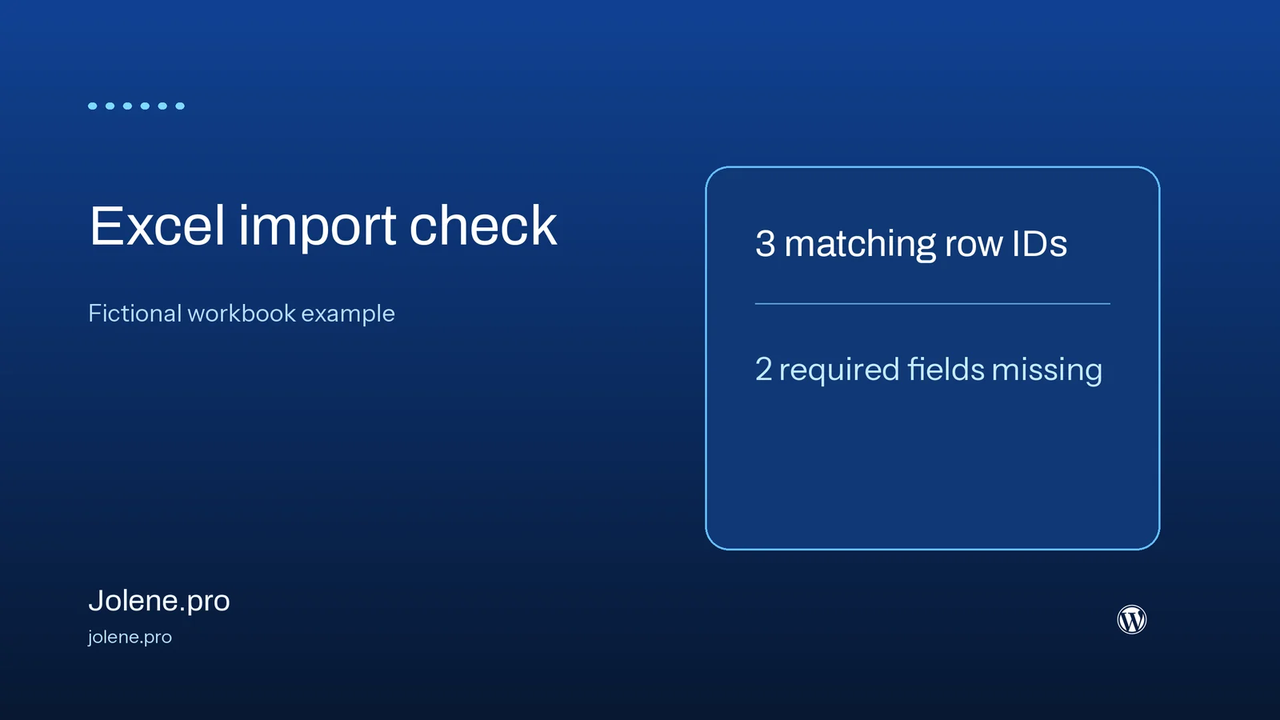
Matching record IDs tell you which rows arrived. Check the returned headers separately to see which fields arrived. In this fictional Excel import, IDs R1 through R3 all survived, while DueDate and ReviewState disappeared.
Verify the worksheet and the importer output from the same run
| Field | Source evidence | Returned header count | Result |
|---|---|---|---|
| RecordID | Source!A1:A4 | 1 | Present. R1, R2 and R3 match. |
| DueDate | Source!AA1:AA4 | 0 | Missing |
| ReviewState | Source!AB1:AB4 | 0 | Missing |
- Freeze the exact input file and the importer output for one run. Paste the importer’s field names into Observed!A and the required names into Required!A. Compare the row IDs as a separate check.
- For field names without wildcard characters, put =COUNTIF(Observed!$A$2:$A$1000,A2) in Required!B2 and copy down. A count of 0 is missing, 1 is present, and above 1 needs review. This formula ignores case. Use a case-sensitive comparison if the importer distinguishes case and extend the range for wider schemas.
- Run a content check on present fields. A returned DueDate column with blank values has a completeness problem. A column present twice has a mapping problem. A change in header order is fine for this check when the contract matches fields by name.
One FME Forum report described a version-specific output that ended at column Z. Staff did not reproduce the issue. This check tests the returned data and leaves the cause, import settings and any remediation to your team.
Try it in Jolene.pro with a workbook you are authorized to use.
Related guide: Compare two exports by record ID.