How to Stop Double Counting When Combining Monthly CSV Files in Power Query
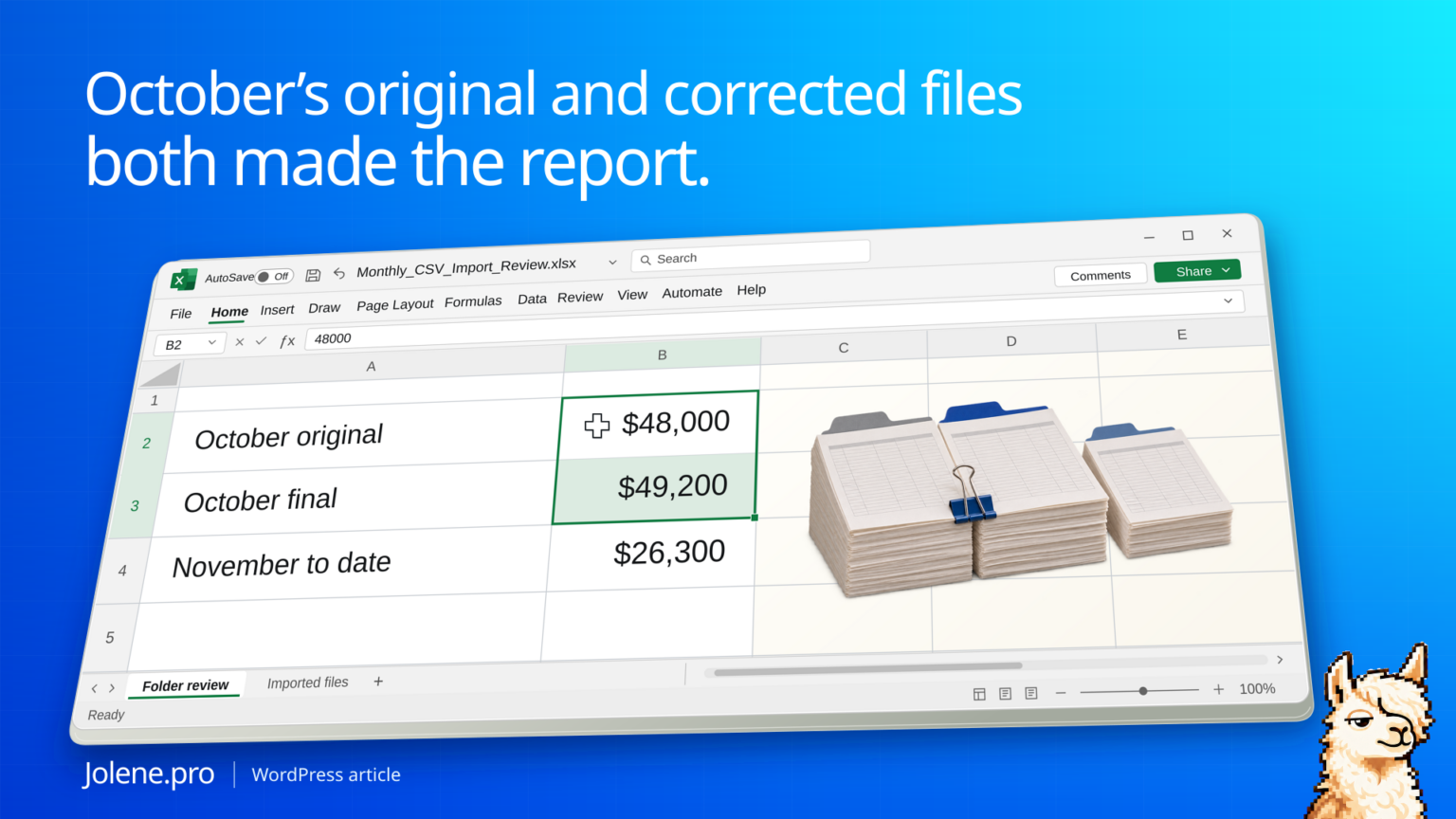
You add November’s file to the report folder and refresh. October jumps again. The folder contains an October original, an October correction and a November-to-date file. All can pass the same column checks.
Keep the source filename and date coverage from every file. Apply a documented inclusion rule before combining rows: one approved complete replacement per period. Treat incremental exports under a separate, documented rule.
Which files contribute to the report?
This example uses approved complete monthly snapshots. The November file is explicitly month to date.
| File | Coverage | Amount | Include? |
|---|---|---|---|
| oct-original.csv | October | $48,000 | No, superseded |
| oct-final.csv | October | $49,200 | Yes |
| nov-mtd.csv | November 1–15 | $26,300 | Yes, label as MTD |
The selected files total $75,500 across the stated coverage. Including the superseded file would push the same report to $123,500.
Filter the folder inventory before you append
Use Data → Get Data → From Folder and inspect the file list first. Preserve filenames and maintain a period and version manifest. File modified time on its own may reflect copying, so use the agreed approval or version rule.
Make the file decision repeatable
Create an Excel table named FileManifest with FileName, Period, CoverageStart, CoverageEnd, ExportType, ApprovedVersion and Include columns. Use the exact folder filename and, if subfolders reuse names, the full folder path as the match key. For this example, mark oct-original.csv FALSE, oct-final.csv TRUE and nov-mtd.csv TRUE. The approved October file is a complete replacement, so its $1,200 increase is already included in $49,200; it is not a separate adjustment to append.
In the From Folder preview, choose Transform Data before combining. Filter out temporary files and keep the file name and folder path. Load FileManifest as a separate query, then merge the folder list with it on the file key. Confirm the manifest has only one row per key so the merge cannot multiply files. Expand Include, keep TRUE, and investigate unmatched files separately before using Combine Files on the remaining Content values. Retain Source.Name, or an equivalent filename column, in the result.
After refreshing, group the output by source filename and check its row count and amount against the approved export. The October group should total $49,200 and November 1–15 should total $26,300. The combined $75,500 is a full October plus a partial November, so it is not a two-full-month comparison. Keep excluded files archived rather than deleting them. This controls whole-file versions; repeated transaction rows within the selected files still require a separate business-key check.
Test overlaps after combining
Check for repeated business keys and overlapping periods with row counts and amounts by file. Be clear about full snapshots versus incremental exports. A corrected month should usually replace an earlier full month under the approved rule. A legitimate new transaction delta may need to be appended.
Find the files behind a higher monthly total
Add a file inventory, manifest decisions and combined detail. Keep the source filename as a column in the combined output.
Which files have overlapping periods or repeated transaction IDs? Show totals by filename, the applicable version rule and the source rows behind the difference.
Move superseded inputs out of the active import scope or filter them out using the manifest. Preserve the earlier versions for reference.
Microsoft’s Power Query folder import guide · Why a merge can multiply rows
The figures and identifiers in this example are synthetic. The displayed arithmetic was checked independently. A live Jolene.pro result could not be verified.
Try this with your own spreadsheet at Jolene.pro. Follow Jolene.pro on LinkedIn for more spreadsheet guides.
For more checked examples, see Jolene.pro Workbook Studies.