How to keep manual notes with the right ID after a Power Query refresh
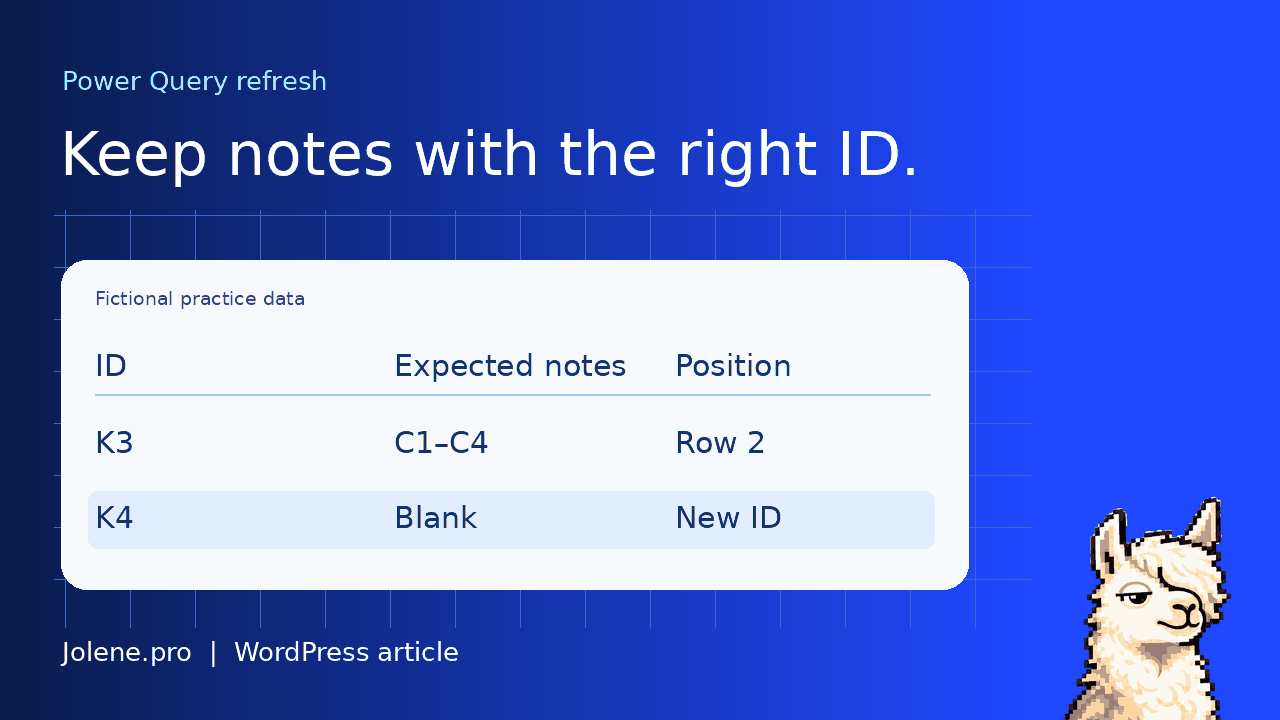
Keep manually entered analysis in a separate Excel table keyed by a stable record ID. Build the current view by joining the refreshed IDs to that table. Then test a reorder, a removed ID and a new ID before relying on the result.
This guide uses fictional records. The expected values were checked independently. A live Jolene.pro result and an execution in Excel have not been verified for this example.
Why the row beside an ID can become misleading
A technical analyst may refresh a daily list of failure IDs and keep four manual analysis columns beside it. If the new import changes row order, the notes can stay in the old positions. A current list of three IDs can still contain three wrong note assignments.
The practitioner discussion behind this example asks for existing notes to survive, new IDs to start blank, and removed IDs to disappear from the current view. Its replies suggest self-referencing queries. The method here uses a separate notes table so a removed ID can retain its notes for a later return.
Keep two source tables
Create an Excel table named Notes with these fictional values. Its header is row 1 and the data occupies A2:E4.
| ID | Analysis1 | Analysis2 | Analysis3 | Analysis4 |
|---|---|---|---|---|
| K1 | A1 | A2 | A3 | A4 |
| K2 | B1 | B2 | B3 | B4 |
| K3 | C1 | C2 | C3 | C4 |
Use the source system’s persistent key. Keep IDs as text, including leading zeros. If IDs can repeat across projects or be reused later, include the project or generation in the key. Each notes key must identify exactly one row.
The refreshed table Current contains K3, K1 and K4 in A2:A4. K2 has disappeared for this snapshot. Keep K2 in Notes. The current view can omit it while its manual analysis remains available.
Merge the current IDs into Notes
- Load Current and Notes as separate Power Query inputs. Choose a distinct destination table for the result.
- Set each key column to the same text type. Validate that Notes has one row per complete key. Treat repeated or blank keys as review items.
- Start from Current. Merge with Notes on the complete key using a left outer join.
- Expand Analysis1 through Analysis4. A genuinely new ID has no matching notes and should retain blank values in these fields.
- Load the result as the current review view. Enter and edit analysis in Notes, then refresh that view.
Microsoft documents the left outer join as retaining every row from the left table with matching right-side rows. Select multiple key columns in the same order when your key includes more than one field. A duplicate key in Notes can expand one current row into multiple results, so inspect that control before merging.
Check all four analysis columns
| Current ID | Expected Analysis1–4 | Source cells |
|---|---|---|
| K3 | C1, C2, C3, C4 | Notes!A4:E4 |
| K1 | A1, A2, A3, A4 | Notes!A2:E2 |
| K4 | blank in all four fields | Current!A4 and the complete Notes!A2:A4 key list |
The practice file Copied.csv demonstrates the positional mistake. K3 has the A note set, K1 has the B set and K4 has the C set. Both retained IDs have incorrect notes, and the new ID inherited someone else’s analysis. The row count alone cannot detect this.
To check a result, first confirm each output ID is unique. Then compare each of its four note fields with Notes under the complete key. Preserve blank and missing-match states. A blank manual field can be valid for a known ID, while an unknown ID has no source row.
Run the returning-ID and duplicate-key controls
Refresh again with K2 and K4. K2 should recover B1 through B4 from Notes!B3:E3. K4 should stay blank until someone adds its own Notes row. Next, add a second K2 row to a disposable copy of Notes. The key-quality check should flag it before the result is accepted. Resolve the duplicate using the source records rather than retaining an arbitrary first match.
Keep a dated copy of the notes table before testing. Use the same source scope and refresh cutoff when comparing Current with a saved output. Distinguish an incomplete source extract from a record that actually left the active list.
Practice with the fictional records
Download the practice CSV package. It contains Notes, Current, Copied and Expected. Open each as a separate sheet and use the names above. The included read-only Python check script verifies the expected joins, removed-ID history and duplicate control. Import steps still need a check in your Excel environment.
Try it in Jolene.pro with an authorized workbook and ask which IDs kept incorrect notes after refresh. Keep the saved Notes table and the actual refreshed output available so the answer can cite both records.
Related check
For missing or repeated source rows, see Compare Two Excel Exports and Catch Missing or Duplicate Rows. This guide checks a different question: whether manual values stayed attached to their original IDs.