How to check shared address links after a CiviCRM bulk update
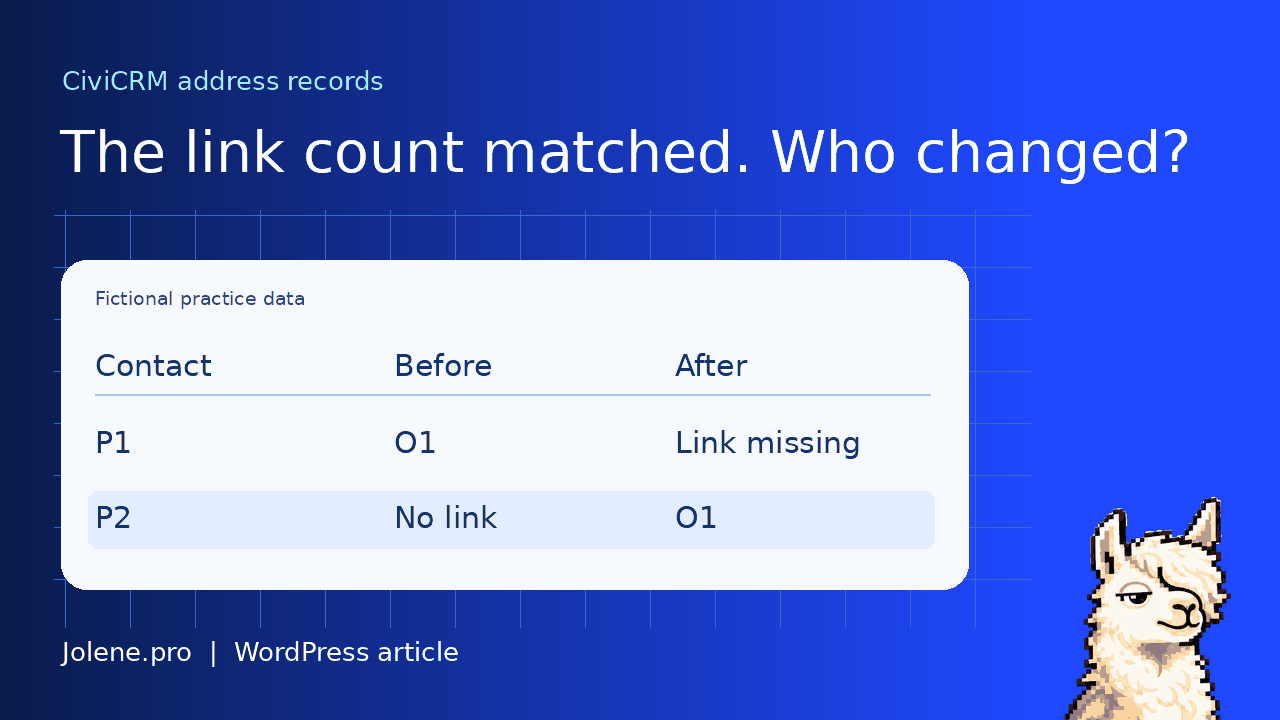
After a bulk update, compare each contact’s explicit shared-address link with the intended organization. Match the contact ID and address location type together. Matching street text and matching address counts can hide a link that moved from one person to another.
This guide uses fictional contacts and an independently checked workbook example. A live Jolene.pro result was not verified for this example.
Why the postal address can look right
CiviCRM lets contacts share addresses, including an individual and their employer organization. Its user guide describes synchronization in both directions. A copied address may still look correct after the intended link disappears.
Start with an authorized read-only extract or a small manual review in a test copy. Capture the shared-with contact ID directly. If your export contains only the displayed address, review the shared link separately before drawing a conclusion.
Save the plan and both snapshots
Use a fixed cohort and the same address location type in both snapshots. Plan records the intended organization. Before and After record the shared-with ID and displayed address. In this fixture each contact has one postal slot. Add a stable address-slot key for legitimate multiple slots. Use masked IDs in demonstrations.
Two links before and after
In Plan!A2:C4, P1 and P2 should share O1’s postal address. P3 should share O2’s.
| Contact | Expected | Before | After | Displayed address in both | Result |
|---|---|---|---|---|---|
| P1 | O1 | O1 | blank | Addr1 | Lost intended link |
| P2 | O1 | blank | O1 | Addr1 | Gained intended link |
| P3 | O2 | O2 | O2 | Addr2 | Still matches |
There are two nonblank links in Before!C2:C4 and two in After!C2:C4. The address text in column D stays the same for all three contacts. P1 loses O1 while P2 gains it. A count alone misses the change.
Try it in Jolene.pro with authorized records and ask which contact-and-address slots lost their intended shared link. Check the cited rows against your saved snapshots before approving a correction.
Check the key before looking up the link
Add a key to Plan column D and to Before and After column E. In row 2, use the following formula and fill it down.
=A2&"|"&B2The fictional IDs contain no pipe characters. If real values can contain that character, use separate join columns or an unambiguous encoding.
Review column A contains the key. Count its matches in each snapshot before selecting a linked ID.
=COUNTIF(Before!$E$2:$E$4,A2)
=COUNTIF(After!$E$2:$E$4,A2)
Both counts must be one in this fixture. Zero indicates an absent slot in that extract. More than one requires duplicate or slot review. When both counts are one, look up column C using the exact key and compare it with the plan. Normalize a genuinely blank link cell to a review label such as [no link], preserving an absent row as a different state.
Review the exception in CiviCRM
Open P1 and P2’s matching address slots in your authorized session and compare the shared-with selection with O1 and the approved plan. Use P3 as an unchanged control. Reopen the fields after any correction and retain a dated after extract.
The practice script checks the source rows and controls for an absent after row and a duplicated contact-and-location key. Those controls remain unresolved until the correct slot or complete extract is available.
Practice and sources
Download the fictional shared-address practice tables and verification script. The ZIP contains Plan, Before, After and Review CSVs, instructions and checked expected results. The publisher will attach the public download before release.
Sources checked November 28, 2026. CiviCRM shared-address guidance. The workflow question came from the community discussion about a bulk shared-address change.