How to check whether a Koha export reflects revised report criteria
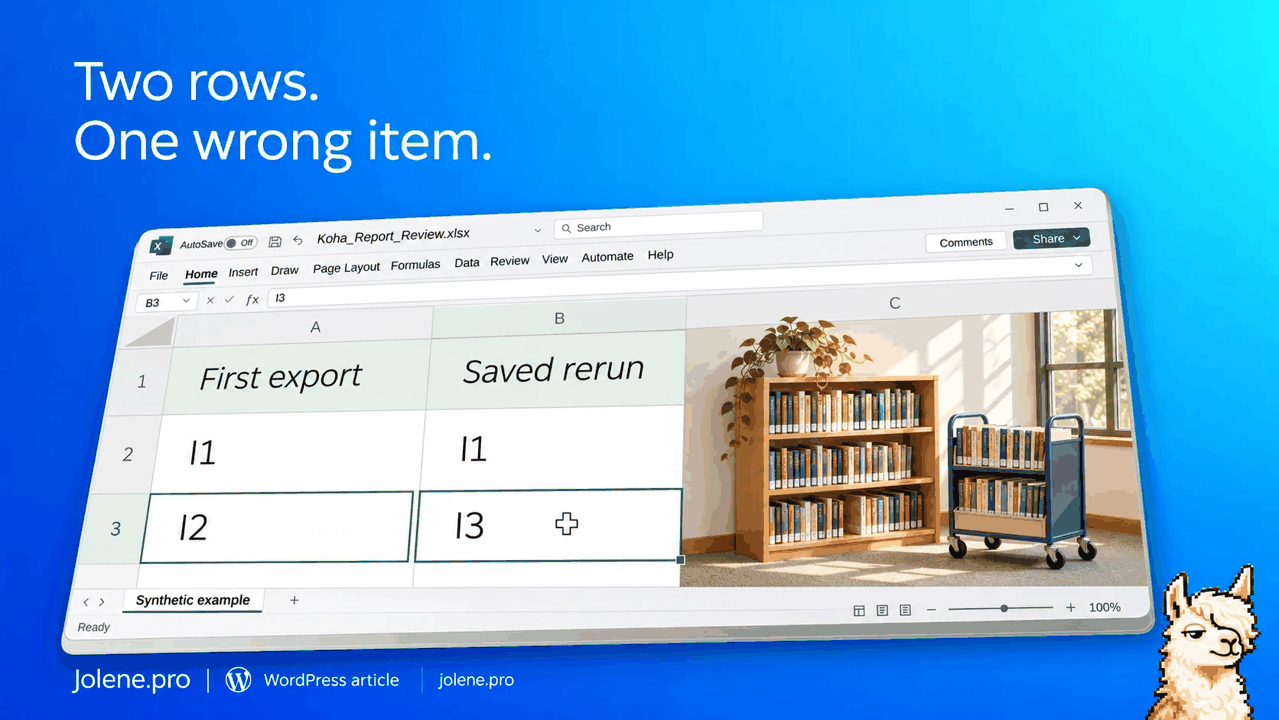
After changing a saved Koha report, compare the exported item IDs with a small control list for the new criteria. Record the branch, parameters and capture window beside the files. A matching row count can conceal a missing item and an unexpected one.
This guide uses fictional library items. The comparison was independently checked. A live Jolene.pro result has not been verified for this example.
Keep the report revision with its result
Koha’s 26.11.00 release notes, dated November 26, 2026 and posted November 27, list fix 43547 for an Update and Run action that could fetch the previously stored report definition. Check the version and relevant update with your library administrator. The comparison here helps you review the records in an export. Confirming the executed SQL also requires the saved definition and execution evidence available in your installation.
Before running the comparison, retain the report ID, a dated copy of the intended criteria, the parameter values and branch, the run time, and the exported file. Use item identifiers that are unique at the chosen report grain. A report with multiple rows per item needs a reviewed composite key.
Make a three-item control list
For a small, authorised test population, establish which items each revision should select. Keep the source conditions and their review evidence with this list. Here, R2 removes I2 and adds I3.
| Control row | Item ID | Selected by R1 | Selected by R2 |
|---|---|---|---|
| 2 | I1 | Y | Y |
| 3 | I2 | Y | N |
| 4 | I3 | N | Y |
The expected R2 IDs are I1 and I3. In a real report, agree the scope and expected membership with the person responsible for the query. Keep patron data and other sensitive fields outside this exercise.
Compare membership in both directions
The fictional first file, UpdateRun, contains I1 and I2. A separately saved rerun contains I1 and I3. Both have two rows.
| File | Rows | Missing under R2 | Unexpected under R2 |
|---|---|---|---|
| UpdateRun | 2 | I3 | I2 |
| SavedRerun | 2 | None in scope | None in scope |
Compare every expected ID against the file, then every exported ID against the expected list. In this fixture, Control!A4:C4 supports the missing-I3 finding and UpdateRun!A3 supports the unexpected-I2 finding. SavedRerun!A2:A3 matches the R2 control set.
For this small Excel-compatible fixture, a per-item occurrence check is =COUNTIF(UpdateRun!$A$2:$A$3,A2), placed beside each control ID. Expected R2 rows with zero occurrences need review. Counts above one require a duplicate or report-grain review. Check unexpected exported IDs in the opposite direction as well.
The first file agrees with R1’s population. That is consistent with old criteria, but the rows alone cannot establish which SQL ran. Inputs could have changed between runs, or the two revisions could produce the same population.
Resolve the comparison’s limits
- Hold branch, parameters and data window constant. If those differ, explain them before interpreting membership changes.
- Confirm the complete scoped export. A truncated download can produce missing IDs even when the report ran correctly.
- Retain the saved definition when both revisions select the same IDs. A population comparison cannot distinguish those revisions.
- Keep duplicate and blank keys in review. Never remove them merely to make the row count agree.
The practice package includes the three CSV files and a read-only checker. Run python3 check.py from its folder. It reads the supplied files, verifies the two-row result sets, and checks duplicate-key rejection. It does not connect to Koha or alter a report.
Review the exceptions in Jolene.pro
Ask which expected R2 items are absent from UpdateRun, which unexpected IDs are present, and which source cells support each finding. Keep the same scope and evidence when reviewing the saved rerun. Confirm the SQL and installation behavior with the library’s report owner.
Download the fictional Koha report practice files.