Why Two Fitness Apps Show Different Pace for the Same Pool Swim
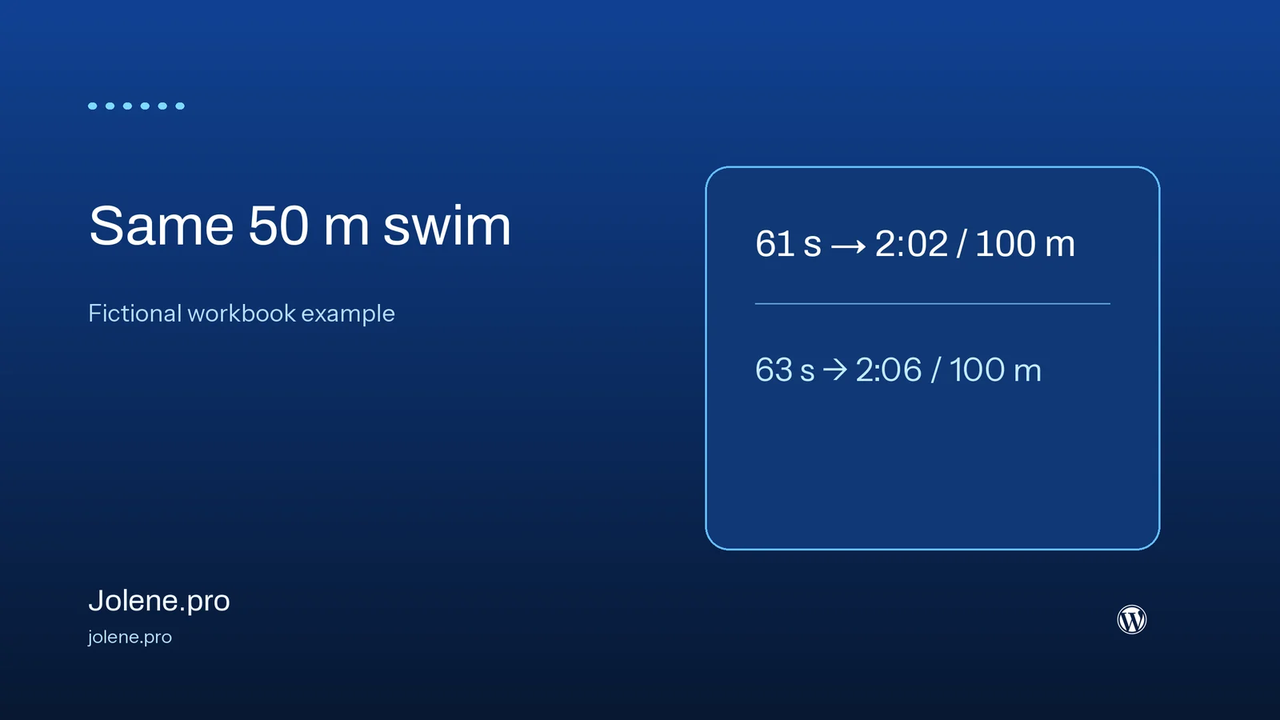
A two-second difference over 50 m becomes four seconds per 100 m. In this fictional set, one field gives an elapsed time of 61 seconds and the timestamps span 63 seconds. Both can produce a plausible pace for the same set.
Check the recorded duration against the timestamp span
| Source field | Fictional value | What to compare |
|---|---|---|
| Session!B2:C2 | 25 m pool | Two active lengths give 50 m |
| Lengths!A2:E3 | 30 s and 31 s | Two active length records |
| Lengths!A4:E4 | 20 s idle | Outside the selected set |
| Lap!C2 | 50 m | Use the same distance both times |
| Lap!D2 | 61 s elapsed | 2:02 per 100 m |
| Lap!E2:F2 | 09:00:00 to 09:01:03 | 63 s gives 2:06 per 100 m |
- Start with a decoded CSV or spreadsheet that gives you the relevant Lap, Length and Session fields. Use the lap’s recorded length indices to find the corresponding lengths. Keep idle lengths out of active distance.
- If Lap!E2 and F2 are Excel times for the same day, =ROUND((F2-E2)*86400,0) converts the span into seconds. If the lap crosses midnight, use full timestamp values. For seconds per 100 metres, multiply seconds by 100 and divide by the distance in metres.
- Compare the two results with the displayed pace for that exact set. A close match is evidence that a field could explain the display. If both durations match, that set cannot identify which field was used.
For a 25-yard pool, two active lengths cover 50 yards, or 45.72 m. Check whether the CSV decoder already normalized the distance to metres before converting. Garmin’s field definitions document the metadata. The forum discussion provides a possible explanation for the app difference.
Try it in Jolene.pro with a spreadsheet you are authorized to use.