Why SUMIFS Misses Transactions on the Last Day of the Month
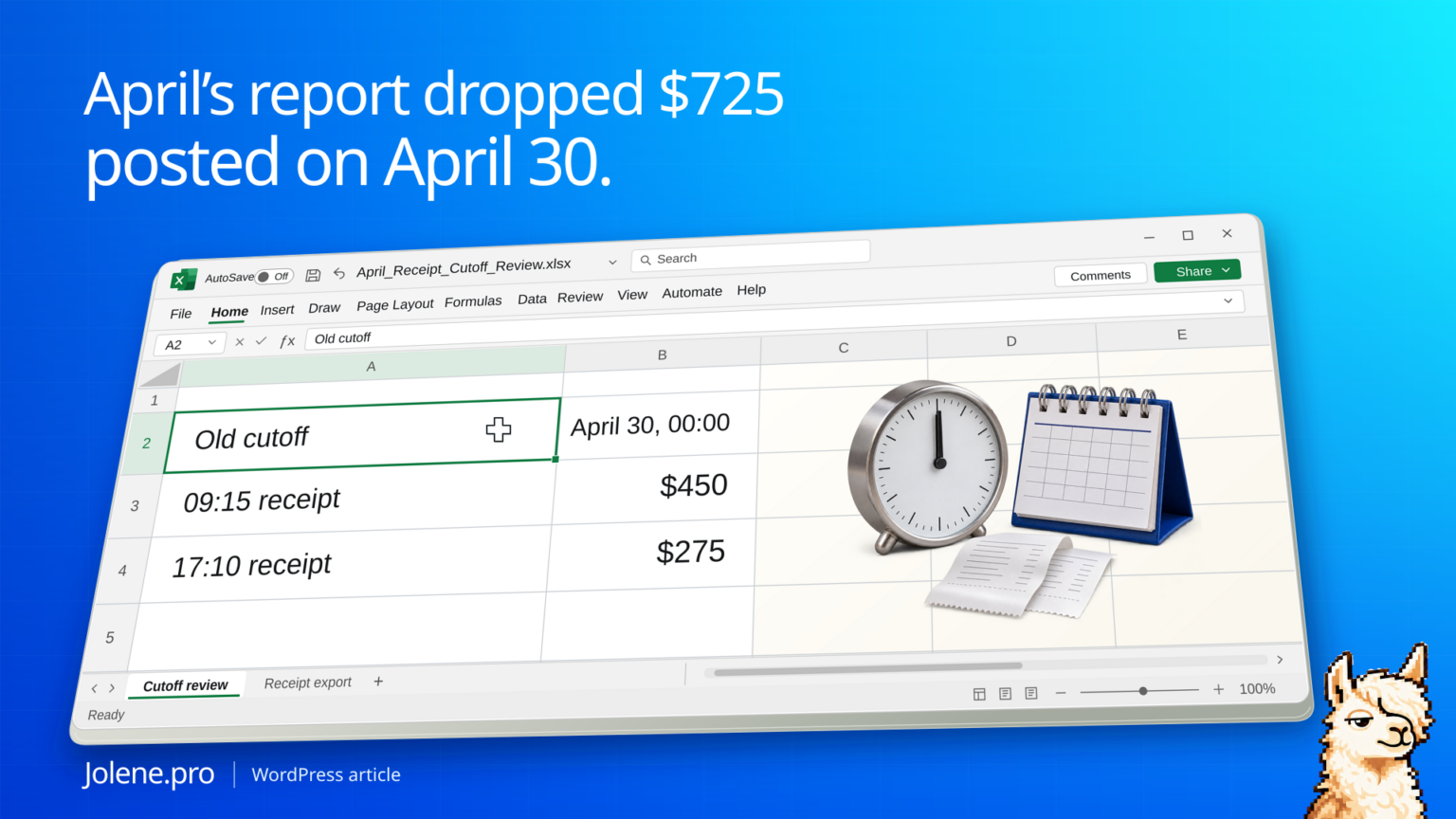
The receipts report is short $725. Every missing receipt was posted on April 30. The report says it includes April 30, but the formula’s end date stops at midnight at the start of that day.
For date-time values, use an inclusive start and an exclusive end at the first instant of the next period. Check the actual timestamp, not just the date format shown in the cell.
Which receipts pass the old cutoff?
Use April 1 through April 30. The old formula compares timestamps to April 30 at 12:00 a.m.
| Receipt | Posted | Amount | Included by old cutoff? |
|---|---|---|---|
| R-507 | April 30, 00:00 | $150 | Yes |
| R-508 | April 30, 09:15 | $450 | No |
| R-509 | April 30, 17:10 | $275 | No |
| R-510 | May 1, 00:00 | $310 | No |
The correct April subtotal for these rows is $875. The first instant of May remains outside April, so R-510 goes in the May report.
Reproduce the result in specific cells
On a blank worksheet, enter =DATE(2026,4,1) in B1. Copy the following tab-separated block into E4. It creates the receipt IDs, numeric Excel timestamps and amounts without relying on your regional date-text settings.
Receipt	PostedAt	Amount
R-507	=DATE(2026,4,30)+TIME(0,0,0)	150
R-508	=DATE(2026,4,30)+TIME(9,15,0)	450
R-509	=DATE(2026,4,30)+TIME(17,10,0)	275
R-510	=DATE(2026,5,1)+TIME(0,0,0)	310
Select E4:G8, use Insert → Table, confirm that the table has headers, and name it Receipts in Table Design. Format F5:F8 to show both date and time. The formula examples use English function names and comma separators; some Excel locales require semicolons.
This old formula includes the first receipt only, giving $150:
=SUMIFS(Receipts[Amount],Receipts[PostedAt],">="&$B$1,Receipts[PostedAt],"<="&EOMONTH($B$1,0))
EOMONTH returns the date at the start of April 30, so a later timestamp is greater than the cutoff. In this setup, F6/G6 and F7/G7 are the omitted timestamp/amount pairs: $450 + $275 = $725. Changing the date display hides the times but does not change the comparisons.
The corrected formula below should return $875 from G5:G7. R-510 in row 8 belongs to May and must stay excluded. All four amounts total $1,185, split into April $875 and May $310. Do not use less-than-or-equal to May 1, because that would pull the midnight May receipt into April.
Use the first day as the start
Put April 1 in B1 as a real Excel date. The source table has Amount and PostedAt columns, with PostedAt stored as Excel date-time values. If the source timestamps are text, parse them first. If timestamps come from multiple time zones, normalize to the reporting time zone before applying boundaries.
=SUMIFS(Receipts[Amount],Receipts[PostedAt],">="&B1,Receipts[PostedAt],"<"&EDATE(B1,1))Reconcile the boundary rows
Filter the source to the last day and the first day of the next period. Verify amounts and IDs against the source. Using a less-than next-period boundary also handles timestamps with fractions of a second.
Show which receipts were outside the old formula
Keep the original timestamps, reported month and corrected month. The same check works on refunds, dispatches and other date-time exports.
Which transactions on the last day were omitted by the current month cutoff? Show timestamps, amounts, corrected month total and source cells.
After the fix, check the first and last day of the next period to confirm the cutoff moves cleanly.
If the reporting period is right but a copied forecast still shows an older amount, check workbook links pointing to last month. Its three-file exercise traces a $4,600 freight difference to the referenced workbook.
Microsoft on SUMIFS · Microsoft’s Excel date calculation reference
The figures and identifiers in this example are synthetic.
The timestamp comparisons and amounts were independently calculated. The expected results are $150 with the old cutoff and $875 with the corrected cutoff. Native Excel recalculation was not performed during this check, and a live Jolene.pro result could not be verified.
If the imported date itself is wrong, fix that first with the CSV date-locale exercise. For the underlying representation of time, see Microsoft’s TIME reference. Find more checked examples in Jolene.pro Workbook Studies.
Try this with your own spreadsheet at Jolene.pro. Follow Jolene.pro on LinkedIn for more spreadsheet guides.
2 comments