How to Track Overdue Invoices in Excel After Partial Payments
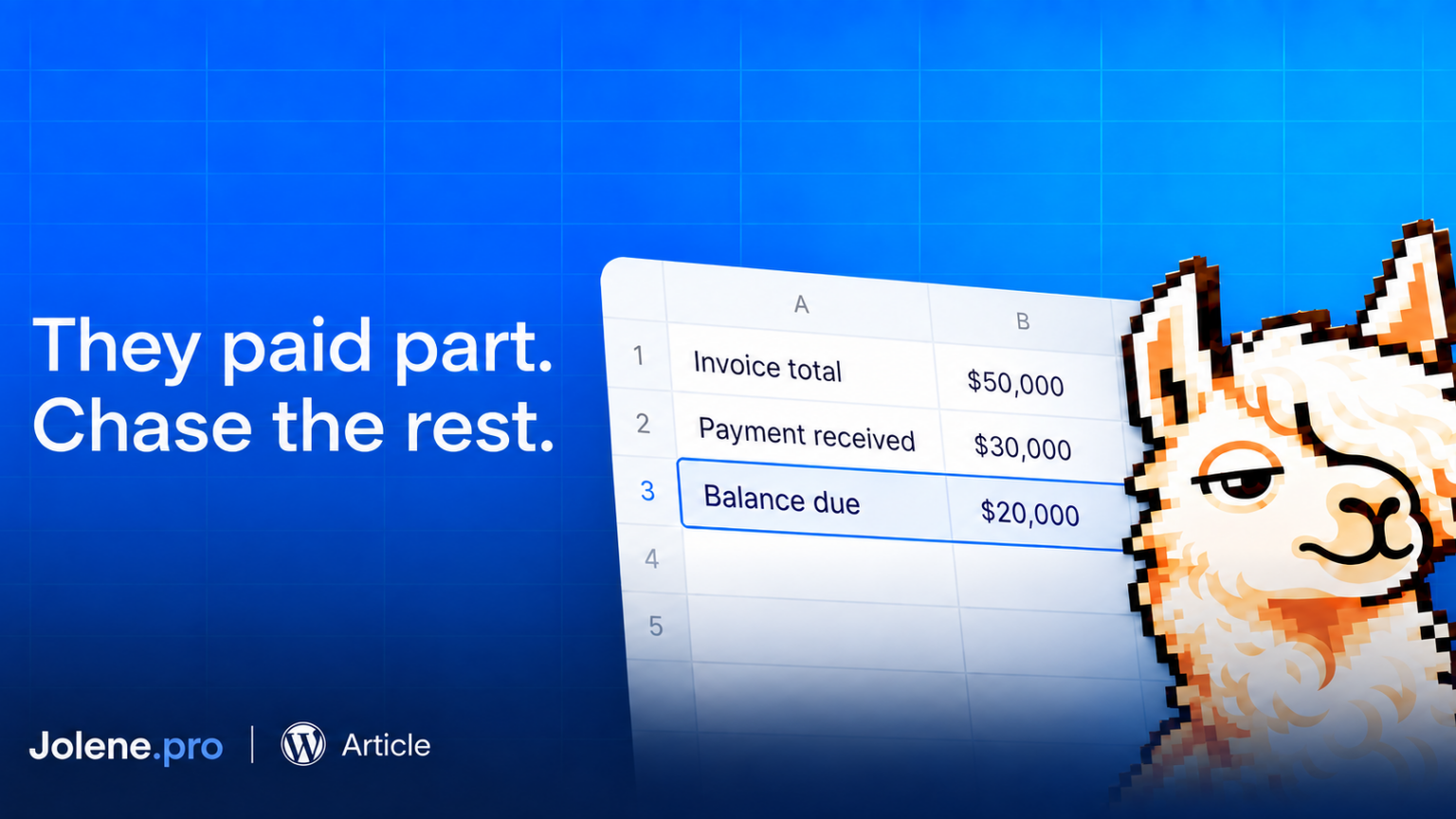
Your spreadsheet says a customer owes $50,000.
The customer says they already paid $30,000.
Both statements can come from real records. Only one tells you what to chase today.
To track overdue invoices in Excel, calculate the remaining balance after allocated payments and credits, then check the due date. The original invoice amount alone won’t tell you what is still outstanding.
Otherwise, your reminder becomes a request for money with a small apology attached.
Start with the balance, then check the age
Consider this fictional example.
Invoice INV-1042 was issued for $50,000 and was due on September 30. The customer paid $20,000 on September 25 and another $10,000 on October 3.
As of October 10, the remaining balance is $20,000. Assuming the original due date still applies, that balance is 10 days overdue.
For a September 30 report, however, the balance was $30,000. The October payment belongs in the October view.
That is why your report needs a fixed reporting date. A historical month-end report should not quietly change whenever someone opens it.
Keep invoices and payment allocations separate
Use one sheet with one row per invoice: customer ID, invoice number, invoice date, due date and original amount.
Use another for payment allocations: payment reference, customer ID, invoice number, payment date and allocated amount.
If one payment covers three invoices, split it into three allocation rows. Those rows should add up to the payment received.
For this example, assume one currency and no credits, write-offs or reversals.
Convert the payment data into an Excel table named Payments, with columns named Customer ID, Invoice Number, Payment Date and Allocated Amount.
In the invoice sheet, place customer ID in column A, invoice number in B, due date in C and invoice amount in D. Put the reporting date in K1.
In E2, calculate payments allocated through that date:
=SUMIFS(Payments[Allocated Amount],Payments[Customer ID],A2,Payments[Invoice Number],B2,Payments[Payment Date],"<"&($K$1+1))Excel’s SUMIFS function totals values that meet multiple conditions. Here, those conditions match the customer, invoice and reporting cutoff.
In F2, calculate the outstanding balance:
=D2-E2In G2, calculate days overdue:
=IF(F2>0,MAX(0,$K$1-C2),0)Copy the formulas down your invoice rows. Filter for positive balances and days overdue greater than zero. Check that dates are actual Excel dates and amounts are numeric.
Investigate before sending the reminder
An unmatched payment does not automatically mean an unpaid invoice. It may carry a different reference or still await allocation.
Check duplicate payment imports, approved credits and revised due dates too. Investigate negative balances instead of hiding them.
The useful output is an amount someone can explain: the invoice, payments applied, remaining balance and reporting date.
Jolene.pro supports spreadsheet analysis with source-cell, row and sheet references. In this workflow, those references give the reviewer somewhere concrete to look when a balance needs checking.
Before contacting the customer, you should be able to show how the number was reached.