Google Sheets Manual Calculation: Check the Totals Before You Share
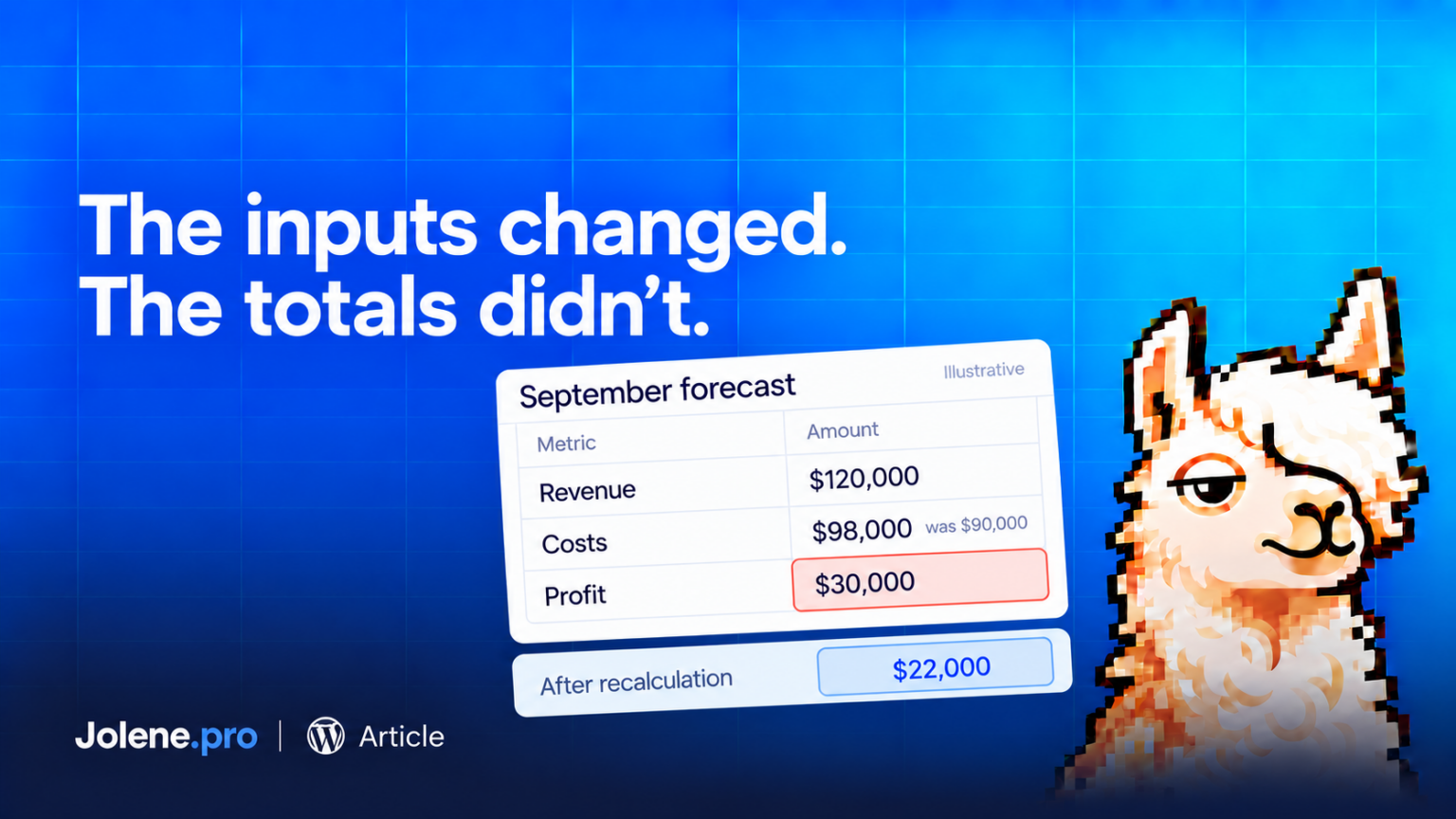
You change an input in Google Sheets. The total stays exactly where it was.
Before rebuilding the formula, check whether the spreadsheet is in manual calculation mode.
Google announced the setting on September 21, 2026, with a gradual rollout of up to 15 days for Google Workspace customers and Workspace Individual subscribers. It lets editors pause automatic recalculation, make several changes, then calculate the spreadsheet when they’re ready.
For a formula-heavy workbook, that can make editing less interrupted. You can replace a block of data or adjust several forecast assumptions without triggering calculations after every change.
The trade-off is straightforward: updated inputs can sit beside results that haven’t caught up.
How to enable manual calculation
On a computer, open File → Settings → Calculation. Under Calculation mode, select Manual, then save the setting.
A banner indicates that manual mode is active. Select Calculate at the top of the screen to update the document.
Google’s help documentation says manual calculation is available to spreadsheet editors and is unavailable in the Sheets mobile app. Calculation settings apply to the entire spreadsheet, so this affects collaborators too.
Why it matters during report preparation
Imagine a simple forecast with expected revenue of $120,000 and costs of $90,000. The projected profit is $30,000.
You increase costs to $98,000 while calculation is paused. Until the relevant formulas recalculate, the displayed profit can still reflect the earlier inputs. The updated result should be $22,000.
The extra $8,000 has not become a saving through sheer optimism.
This is a fictional example, but it shows the review problem: a plausible total can survive after the assumptions supporting it have changed.
Finish the calculation before the handoff
Before presenting the report, select Calculate and check the outputs that depend on your edits. Review the reporting period, key totals and any errors that appear.
If the file uses external data, check that separately. Recalculating formulas is not proof that every external source contains the latest records.
For a shared workbook, agree on who performs the final calculation and review. That gives the team a clear handoff point before anyone copies a figure into a presentation.
The same discipline applies before preparing an Excel or CSV file for Jolene.pro. Jolene.pro provides source-cell, row and sheet references behind its analysis. Those references help you inspect the evidence, but they do not establish that the source file was current when it was exported.
Manual calculation gives you control over when results update. Before sharing the report, make sure that update has happened.