How to Compare Two Rent Rolls in Excel | Jolene.pro
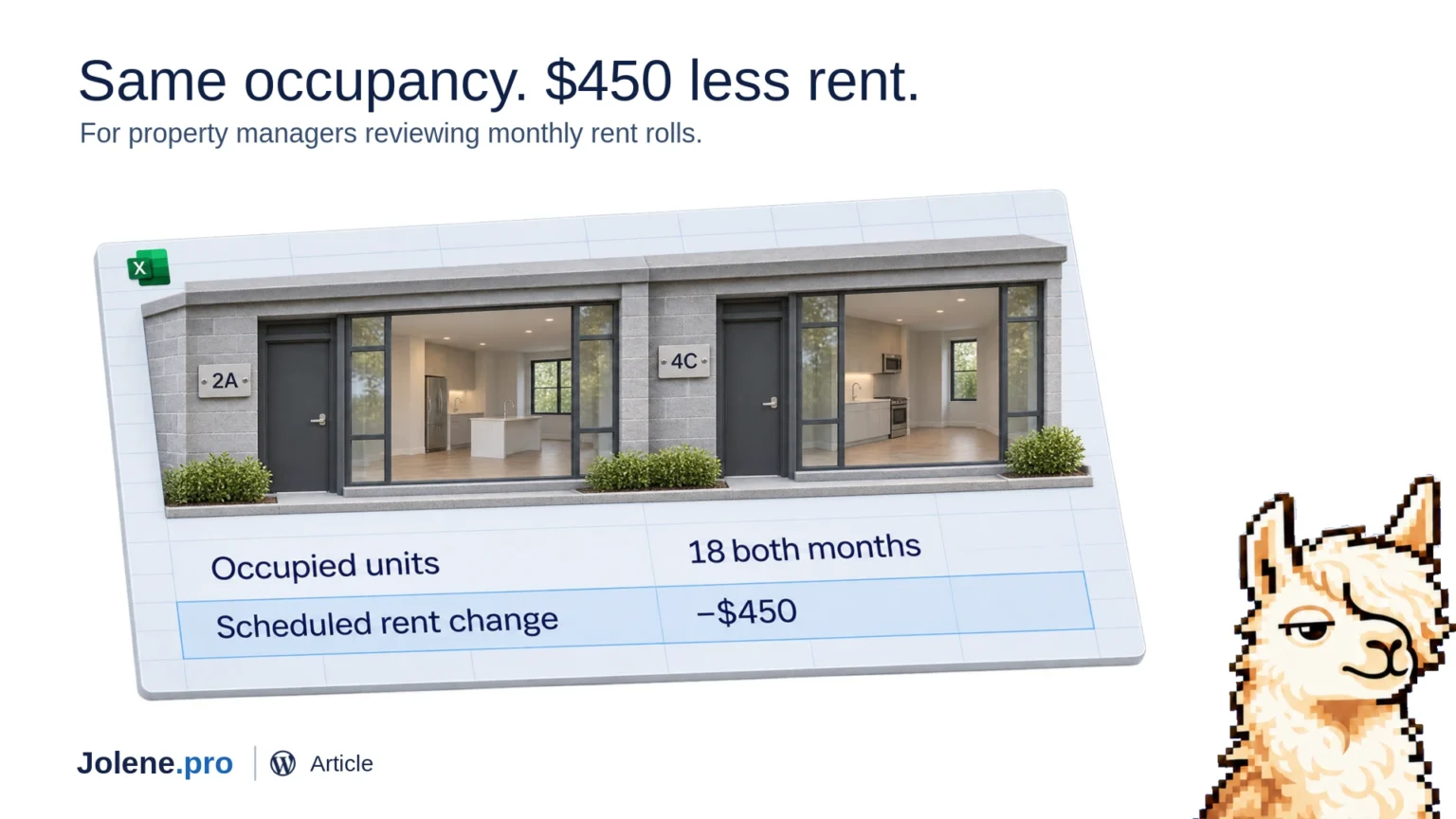
You had 18 occupied units last month. You have 18 this month. Scheduled rent is down $450.
Before you send the owner update, find the units behind the change. A portfolio total tells you how much moved. Comparing the rent rolls unit by unit tells you why.
Start with two rent rolls and a full unit list
If you manage rentals in Excel, pull last month’s rent roll, this month’s rent roll, and the full unit register. Keep the property ID, unit ID, lease start and end dates, and scheduled monthly rent.
If you use property management software, start with two dated exports. TurboTenant’s rent roll CSV reflects the day you generate it, so save a copy each month. Bring the full unit list separately. The export can omit vacant units without a lease profile and include leases that haven’t started yet. TurboTenant’s rent roll guide
Compare the units before comparing totals
- Match by property and unit. Unit 2A at one building is a different record from Unit 2A across town.
- Use each report’s date. Separate leases already in effect from future starts. If you’re reporting physical occupancy, use actual move-in and move-out dates where available.
- Group the changes. Separate units that turned over, units that renewed at a different rate, and records that need review. Compare scheduled monthly rent on the same basis in both files.
In a sample portfolio, Unit 2A rented for $1,850 before a turnover and $1,550 afterward. Unit 4C renewed at $1,550, down from $1,700. Those two units account for the full $450 decline.
What to ask Jolene.pro
Add both rent rolls and the unit list, then ask:
Which units explain the change in scheduled monthly rent? Separate turnovers from rent changes and show the source rows.
Now you have a specific answer for the owner: one unit re-let at a lower rate, and another renewed at a lower rate. Save the dated exports so you can run the same check next month.